How to resize a partition in Windows Vista


Because programs such as Partition Magic don’t work on Windows Vista, some of you may be wondering how to resize partitions without losing any data. The good news is that you probably won’t be needing those programs because Windows Vista can manage your partition resizing.


To resize a partition with Windows Vista, follow these steps:

Be sure to back up any valuable information, because there is a slight chance that data can be lost when dealing with partitions.

1) Click on the Start menu

2) Right click on Computer and click on Manage
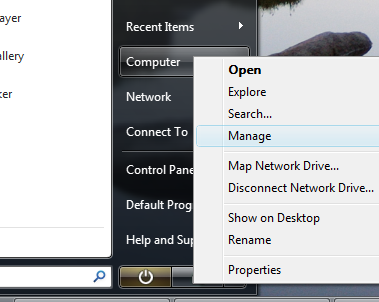
manage

3) You may get a User Account Control dialog here; just click Continue

4) In the left pane, open up the Storage category and click on Disk Management
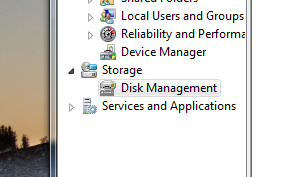
storagetodisk

5) Here, you will find your partitions for your disks. Right click on the partition you’d like to modify.

partitioning

6) Click on Extend Volume or Shrink Volume to extend or shrink the selected partition.

If this doesn’t work for you because some options were greyed out, you can check out this post for an alternate method.

Still need help? Check out our new forums where you can get an even faster and better response!

360 Responses to “How to resize a partition in Windows Vista”

  1. Jodiath Says:

    Very nice documentation. It worked like a charm.

  2. Dan Says:

    Why is it that my hard drive is only half full but i cant shrink the volume. It says that the available shrinking size is 0 mb?

    anyone? at one point in time my hard drive was completely full but i deleted half of it. Is this why?
    does it have something to do with a system restore point. cause none of them go back that far when my hard drive was full! not even if i enable the “older than 5 days”

    anyone i’m getting frustrated!

  3. Albert Ng Says:

    is it a basic or dynamic drive?

  4. Dan Says:

    hmmm…basic?
    its a regular hard drive.
    I used to be able to make apartition and shrink my partitions. but not anymore
    says available shrink size 0!

  5. James Says:

    you need it to be a dynamic drive, other OS’s like Linux won’t like it though if use dynamic but u’ll be able to do much more with it in Vista
    -

  6. hasso Says:

    hey guys i need help here . i have the recovery partition that comes with hp but when i installed vista i can’t find it and i used this method to delete it but i can’t . i want to delete it ! it takes 8gb !!! so plz help

  7. Albert Ng Says:

    it’s most possible that you are using that partition when your computer is booted? Try booting up with the CD and deleting the partition that way

  8. hasso Says:

    yeah i tried but it’s bot in the liste when i boot with the cd ! what i gotta do ?

  9. YoYo Says:

    Is that P e ni s in the picture of Vista’s background? Damn! Looks like it! ;)

  10. Shashank Mittal Says:

    Hey hasso, try Paragon Partition Manager (http://www.partition-manager.com/). It is Vista compatible. You can use it to delete your HP recovery partition.

  11. chris Says:

    Damn YoYo… That was just too hillarious! You can see a little bush action too. LOL

  12. Walkup Says:

    It just only can shrink spaces, can not extend spaces, right?
    dose any solution to extend “C” spaces???

  13. Albert Ng Says:

    It can extend as well

  14. me Says:

    Try to Create New simple Volume …. but got “not enough space available” …. I have enough space … do you know how to solve it ? Am I having too many partitions ?

  15. Diablo Says:

    My primary boot for vista is the secondary partition on my HDD-0 drive. I have sucessfully shrunk partition 0, XP install, but now am unable to extend my partition 1, Vista install. Disk Management is saying 39.06GB unallocated. The Vista partition has the Extend Volume option grayed out. My XP install partition now says Shrink and Extend. Any ideas on how to get Vista to extend the boot partition?

  16. Yatzeck Says:

    Can I shrink one partion on windows xp and extend this with installed vista? I have both systems. Can be there some bad effects in working of Vista

  17. Albert Ng Says:

    Diablo: I’m still looking into your situation. What kind of partition is your Vista partition?

    Yatzeck: You can most definitely do that, although I’m not sure what you mean by “bad effects.”

  18. Prodigal Says:

    I tried to shrink my C drive, but the leat i can shrik is 30 Gb. I have 120 GB disk.
    I want to make 3 partition.
    Plz advice me. What to do? I tried partition magic 8.0 but it didn’t worked.
    help is needed

  19. Yatzeck Says:

    i mean if change the size of partitions in windows Xp, Vista will work normally right?

  20. Albert Ng Says:

    Prodigal: It’s probably because that 30GB is in use. Allocated space should be in black. Just right click and choose New Volume.

    Yatzeck: No, as long as you don’t change the partition type, your Vista should work fine

  21. L_E_O Says:

    I’m having the same issue Dan was above. What do you have to do to make the drive dynamic? I’ve got 120 GB free, but Disk Management isn’t recognizing it. Any suggestions?

  22. Albert Ng Says:

    You can convert a disk dynamic but not a volume. You DO NOT want to do that if you have more than one operating system installed on one hard-drive.

    You just have to right-click Disk 0, Disk 1, or whichever, and choose convert to dynamic disk. Don’t click on C,D,E… those are volumes.

    This link might prove helpful: http://technet2.microsoft.com/WindowsServer/en/library/354e5163-f388-4354-984c-ea4e4206694c1033.mspx?mfr=true

    If you have more than one partition, I don’t think it’s a good idea to convert your drive to dynamic.

  23. Alvert Johnson Says:

    why is the shrink size restricted in vista???how can i disable the snapshots and pagefiles??my hard drive is 120 n a can shrink only 50% of it??? do u expect me to keep 50% of my hard drive for C only???how can i create my own partition????

  24. Albert Ng Says:

    Are you talking about the shadow copies? You can disable the shadow copy and backup service in your services manager. Also, make sure to disable automated system restore at the backup restore center. I have no idea why you cannot shrink it all. Although Windows Vista Partition tool is handy, it sometimes gives more of a headache =\

    Perhaps you have that space used for virtual memory… but i doubt it’d be that much…

  25. Nazmin Says:

    does anybody know how to resize c: partition which contain vista itself….i really getting mad here with my hard disk space in c: left only about 200MB even thought total hard disk space 20g…

  26. Albert Ng Says:

    Nazmin I don’t really get what you’re saying.

  27. kjc Says:

    I’m having just the same problem as Nazmin. I have a 500gb hard drive, partitoned into 7. My vista C drive is 50 gb, but although I am moving Program Files to another partition I can see that’s going to be too small. I tried to create more space by shrinking one of the partitions by 10gb. This now says on right clicking, “New Simple Volume”. But when I click on C drive “extend volume” is greyed out If I format the Simple Volume, the same occurs.
    Surely one can extend the C drive???

  28. Albert Ng Says:

    kjc: does the free space come before or after your C drive. Also are you booting into your logical or primary partition?

  29. Albert Ng Says:

    everyone who has had a problem, come back in a day or two. I just found out an awesome alternative to this. I will write an article about this soon.

  30. Dennis Says:

    Same problem we have tried many different things but none work,, we even made an extra free space but would not allow me to use it to make C drive bigger..
    Please help
    Thanks

  31. Albert Ng Says:

    Have you checked out this link?
    http://vistarewired.com/2007/04/07/how-to-work-with-partitions-in-windows-vista-xp-when-disk-management-doesnt-work/

  32. Eugene Says:

    Have anyone having trouble resizing usind disk management succeeded with GPart?

  33. alexei Says:

    Yes, I used GParted to extend Vista partition. Never used it to shrink a partition though. All the rest partition programs failed (Vista default disk manager, Acronis DiskDirector) except GParted. I made a backup, and then proceeded extending a partition with gparted. It worked for hours, because it copied all the data from the old partition start sector to the new one. At the end I had to launch a Vista recovery console and fix the boot, because Vista wouldn’t boot from that extended partition. This was not a problem with a partition. GParted didn’t corrupt it. It’s just Vista didn’t find some boot records where it expected it (I think its new boot manager, BCD, is very fragile). But after I fixed it with the recovery console, everything worked.

    GParted is a very reliable tool. It saved me on multiple occasions.

  34. Albert Ng Says:

    alexei, have you tried the diskpart.exe
    Extended partitions cannot be used to boot

  35. alexei Says:

    To Albert:

    No, I haven’t tried diskpart to resize partitions. I used it once to create a partition and I found that it has a very unintuitive user interface. You might think the interface of fdisk (linux tool) is bad. Diskpart is even worse in this respect.

    I know that extended partitions can’t be used for booting. In my previous message I worked with a primary partition.

    In fact, I’m using GParted right now as I write this message to copy a 24GB XP partition to another partition. It just finished successfully. I didn’t notice it before but GParted actually is just a shell on top of other linux partition management tools. In my case it used ntfsresize, ntfsclone and dd to do the work.

  36. Albert Ng Says:

    Thanks for the comments. I am going to try out GPart and if it works, then hopefully it’ll be the final post I’ll be making about partitions. I am so confused as to why Microsoft decided to make such an awesome tool, but when you try to use it… they gray out the options

  37. bryfly Says:

    Read the mails, having trouble also, tried the vista method to extend c drive, it is greyed out ..no go….tried alternative method …no go…. i have c drive with vista on… d drive with xp on ….and k drive new volume, when type in extend i get the message .” there is not enough usable free space on the specified disk to extend the volume” tried deleting k drive making it free space, still alternative method gives the same message.
    any ideas please??

  38. Albert Ng Says:

    I haven’t tried before, but everyone has been talking about GPart. You might want to give that a try

  39. bryfly Says:

    Thanks Albert……..had a look at this program but se it downloads as a ISO………I always have mega trouble with them ……..so hopefully there i another way

  40. Albert Ng Says:

    bryfly: I will have a tutorial on ISOs soon

  41. Roshan Says:

    Trying to Create New simple Volume …. but getting “not enough space available” ….error. I have enough space. Any idea how to overcome this?

  42. Kevin Says:

    I have a question for everyone having problems. Are all the partitions that are trying to be resized formatted NTFS or are some formatted FAT 32? I believe they all need to be formatted NTFS for this to work.

  43. Fred Says:

    Hello,
    I have the same problem as Diablo (March 25th) :
    36 GB Disk with 16GB on Partition 1 (XP), 20GB on Partition 2 (Vista64)

    Vista installed the bootloader in P1 in order to multiboot, so the XP partition is active/boot.
    It seems the partition manager tool is unable to resize P2 in order to take advantage of free space between P1 and P2… That is, if I have some free space at the end of the disk, I can extend P2 to take it, but if I shrink P1 in order to get more space for P2, I will end up with unallocated free space after P1, which I cannot use to extend P2…

    I would think it is because it cannot MOVE the partition, as opposed to a shrink or extend to free space after the partition, where the beginning of the partition wouldn’t move…

    I tried Paragon Partition Manager 8.5, which is touting Vista Support, but I ran into the same limitation : If I try to extend the Vista partition using free space before it on the disk, the software tells me that some files are in use on the Vista partition (no kidding) and helpfully asks to restart. I thought it would do the move on restart before the OS loads, like Partition Magic used to, but it just really restarts, as if it was going to help anything…

    If Vista capable

  44. Fred Says:

    Sorry, me again, I couldn’t help notice that in the top article, you provide a picture on step 5) that is similar to my setup : imagine you go ahead and shrink your C: (XP) partition, will you then be able to extend the D: (Vista) using this free space between C and D ? If yes, I would really like to know how…

  45. Fred Says:

    Ok, final words on this, Acronis Disk Director Suite 10 did the trick (only the 260 build is Vista-compatible). I used it to build a bootable CD, which allowed me (finally) to MOVE down the partition and thus occupy the free space between the XP and Vista partition. No problem booting afterwards, I did several other operations (extend the partition, convert it to primary instead of logical…), without any problems, and the multiboot is still operational.

    And for what it’s worth, when I change something in Vista about the Vista partition, Disk Director will reboot and apply the changes on boot, before loading the OS, like any self-respecting partitioning software should… Paragon Partition Manager on the other hand, gave me nothing but trouble, and even though it’s uninstalled, I now get a DOS prompt-like notification at boot about some of its files missing. Avoid this software…

    Fred

  46. Kevin Says:

    Another idea, Make sure to turn off the Recycle Bin on the partitions you want to resize. Windows will reserve up to 10% of drive space for it.

  47. ttiqq.com Says:

    How to resize a partition in Windows Vista…

    Programs such as Partition Magic don’t work on Windows Vista. Some of you may be wondering how to resize partitions without losing any data. The good news is that you probably won’t be needing those programs because Windows Vista can manage your pa…

  48. Rushil Says:

    Hi..i have 120GB HDD with vista installed on 100GB C DRIVE …I wanna resize 100 GB C drive into 60+40 sotht i can go with XP also…Above operation works well till making unallocated disk space..bt creates problem while manking New Partition of unallocated 40 GB partition..and gives an error msg that “You do not have sufficient disk space to perform this operation.”…Does anyone of ou has solution for it?..i tried a lot bt i coulldnt find result…

  49. Albert Ng Says:

    It could be because System Restore is using that space.

  50. Rushil Says:

    hmm…what should be by next step to solve it..and to get my drive resized….

  51. Albert Ng Says:

    Rushil: Just a word of warning before I begin typing away, many people have had frustration with resizing partitions. I can’t guarantee you will successfully resize your partition but anyway…
    First, if you don’t use System Restore, you can disable it by checking out this post: http://vistarewired.com/2007/04/28/working-with-system-restore-in-windows-vista/

    If you do use it, you could resize it. It would be wise not to resize it too much. System Restore uses 15% of your Hard Drive for its backups. You can run this command:
    vssadmin resize shadowstorage /on=c: /for=c: /maxsize=4GB
    Change c: to the appropriate drive and 4GB to the appropriate size. Do not make it lower than 1GB.

    Next you can try the various partition posts on VistaRewired. You can start with the one under Most Popular in the sidebar on the left. If that doesn’t work, and you are in a hurry, I suggest you try Gparted:
    http://gparted.sourceforge.net/

    If you have the time, make sure to read the update post on partitions I made before going to Gpart.
    For me, the 1st method (Using the GUI Disk Management Tool) could only shrink by a couple of Gigabytes. Doing it via command prompt did the job. For others, only Gpart would work. Through tackling this problem, I still don’t know what works best for all =( Hope it works well for you.

  52. Rousseau Says:

    I think Win vista is restricted to partition to only half af the hardrive.
    i have 160gb in my laptop, it only allowd me to partition to about 70gb, there is no work arround within vista (not yet found)
    I goind to try the Gparted method.

  53. Rousseau Says:

    I did it with the gparted, very easy to use.
    I shrink vista in a 40gb patition and @ the restart vista did a system check.
    that set.
    When I went back to comp. management it even allowd me to shrink C:\ to half again.
    thankYou for the tip and tricks

  54. Rushil Says:

    Rousseau: Can u plz tell me steps ? i mean how did u do this?….thnx..

  55. Roger Says:

    Anyone know how to convert a logical partition/drive to a primary partition on Windows Vistta Business?
    I need to have it as a primary partition so I can put Linux on there.

    Thanks for your help.

  56. Chris Says:

    Okay i just got a new computer to game w/ but alot of things arent compatible w/ windows vista premium. I want to put windows xp home edition. I already have the disk. Now what do i do? Can you guide me step by step on how to do that?

  57. Albert Ng Says:

    Roger:
    I will have to look into that for you. I accidentally erased my entire Vista partition installing Ubuntu and am way too busy Windows Vista right now… I don’t even know where the disc is. Anyway, I searched for a few links that may be helpful:
    http://neosmart.net/blog/2006/easybcd-15-multidual-boot-vista-linux-mac-os-x-bsd/
    http://apcmag.com/5046/how_to_dual_boot_vista_with_linux_vista_installed_first
    No guarantees if they work since I don’t use linux. Hope this helps a bit.

    Chris:
    Windows Vista can put programs into compatibility mode, check out this article: http://vistarewired.com/2007/02/18/run-your-non-vista-software-on-vista/

  58. Jock Says:

    Great article and forum.
    Stupid question:
    VISTA [120GB HD C: 52GB D: 52GB]
    -If I,let’s say extend my C drive, does it automatically shrink my D drive?
    -Also I’m not clear about the best use for my [DATA] D drive.

  59. vitrag Says:

    i have bought this laptop just yesterday
    HP Pavilion dv6226tx Notebook PC
    it has windows vista premium installed
    i wanna make 4 partitions
    how to do this?
    without any software or if need any software then which one
    and how
    plz guide me

  60. theultramage Says:

    To the people above: the reason why you can’t usually resize past 50% is because windows usually scatters files all over the disk, and the windows partition editor doesn’t know how to ‘defragment’ these files. Compare this with PartitionMagic, which has no problems taking files that obstruct the process and cramming them into whatever free space it finds. So you need one of these tools that can defragment/compact the disk.

    If you doubt this, just download Sysinternals DiskView and take a look just how ‘compacted’ your disk really is.

  61. Roky Says:

    i have a 160 hdd and on it, i have 3 partition. one of 12 GB and 2 of 68 GB……pls help me because i don’t know how to partition the 12 GB partition to be bigger in win vista …… so i use the manage program from the windows …. I’ve done the shrink task to a bigger partition but i cant extend the 12 gb because the 12 gb partition is primary partition and the other 2 is logical and i dont know how to use that unpartitionated space………pls if you find a program that works under vista pls tell…..or another method that i could use…… I think that 1 solution of tis problem is to go with my hdd to a frien and use his Partition Magic to partition mine hdd …………so pls help ………….. :D:D:))))))):D:D:D:P:P…………………..10x

  62. Vijay Says:

    Can i make three partitions using Windows vista, And can i install Windows XP on the thrid partition ? If possible can any one help me ?

  63. ryan northampton Says:

    thank you very much.
    a website that is helpfull

  64. mark Says:

    I just want to know if you can play diablo I and II, Doom, Doom II, Final Doom ,Freedom Fighters and Clive Barker’s Undying on Windows Vista without losing data

  65. Diego Alberto Bernal Says:

    Disable virtual memory in the drive you want to reduce (shirnk)

  66. Snudgeo Says:

    Dealing with partitions in Vista is easy with Paragon Partition Manager 8 Recovery Disk. Boot to it and you can do just about anything. My copy came free with Personal Computer World magazine. I have found invaluable information on vistarewired and hope my contribution is of some help to all you frustrated Vista users out there!

  67. JohnO Says:

    Week old toshiba satellite with 150GB; comp.manage won’t go below 98GB in C; tried a few solutions proposed in the above posts without effect. Objective is one Fat32 data partition, and two(at least) others for linuxOs. Tried my old Partition Commander8 and evaporated the MBR; not good… How about initial partition changes with Knoppix? Will gparted on Knoppix allow me to further shrink C, then establish a Fat32 partition for data, without evaporating the MBR so that Vista will still open?

  68. Keith Says:

    There is a problem shrinking C drive in Vista. From within Vista, you cannot shrink C drive beyond about 1/2 the size of the hard disk. The reason appears to be System Restore. Deactivate System Restore and remove all restore points. Defragment the drive. Download GParted from the link below, burn the iso file to a CD, and you should have no problem shrinking the drive to any desired size. You can create, delete, format, and resize partitions.

  69. A. Jacob W. Reinhardt Says:

    I have had a weird experience…I have extended an NTFS partition 2 GB. Disk Managment says it has been extended, but Windows Explorer refuses to acknowledge the extension…i booted into XP and it too is not recognizing it…it seems I have a parital operation, like the partition table says it is 2GB bigger than the NTFS file system assoc. with the drive. I had just converted it from FAT32 for the sole reason of being able tom resize the partition. Hmmm…I guess I may be in for a total repartition? Hmmm

  70. KLHT Says:

    For those who have the “lotsa space but little shrink room” problem, this should help:

    It really is that certain data is placed at the end of the disk or partition, and you can move it with the “Offline” files defrag available in the free trial of http://www.raxco.com/products/downloadit/perfectdisk_download.cfm . I think there are supposedly limitations in the trial program, but what you need works.

    If you want to make smaller partitions out of the new ones you make, you have to do defrag “offline” files on each new partition before you’ll be able to shrink it. You’ll be able to see Perfect Disk move the data. I think in another defragger the data that kept getting in the way was IDed as metadata .

    So many experts say that defrag isn’t necessary under normal circumstances, but I do like my data tidy. I’m tempted to buy Perfect Disk just because it allowed me to partition my disk using the Vista tool. Plus, I like to see the process, not do it blind as in Vista’s defragger.

    I tried for 2 hellish days to solve this problem without buying something or figuring out how to install & use GPart. Someone suggested this, but without detail, and I didn’t understand that I could use Perfect Disk in a trial version that would work. I’m going to offer this solution in the appropriate threads in the sites I visited when looking for help. Please do the same if you have time.

    Hope this helps!
    KLHT

  71. moatackef Says:

    ello,
    I have recently bought dell xps 1210 with pre installed windows vista business installed in drive c 140 gb and drive d only 10 gb.
    I want to resize my drive c in order to have either drive d bigger or to have another drive, but it doesn’t work out.
    i tried to resize drive c, it could be done but when i right click on new volum to have it located at the end wizard/messages tells me you don’t have enough memory :D Any good suggestion please to be able to resize it ?

  72. disk data recovery Says:

    disk data recovery…

    Hi. Thanks for the good read….

  73. Chels Says:

    Can i do the same thing with XP windows if im using a MAC ?

  74. Hoptown Says:

    Thanks for the great tip! I had no idea this was in Vista - This saves me from the frustration of using partation magic

  75. FrozenZia Says:

    KLHT!!!

    yes! Thanks a million for that PerfectDisk tip — didn’t have to burn a GPart disk or anything - sweet! FINALLY able to shrink my 80G disk more than 6 Gig! What a relief! thanks!

  76. Odd-Job Says:

    Thanks for the wicked tip…was looking to use partition magic and found this was not available - and so this has saved me carrying out a FULL rebuild.

  77. Baha Says:

    Need help, please!

    I have shrinked the C: where Vista is installed from about 55GB to 35GB but I can’t find that left 20GB?!!? I mean there is one part but it has no E: or F: latter for disk. I want to install WinXP on it but how if there is no extra disk partitioned?

    Thanks a lot!!! Cheers!

  78. Baha Says:

    The tutorial was very helpful, and I figured out how to reformat and create a separate disk like E: or F: etc.

    One more question, I have shrinked the Vista hard disk part making it small (about 35 GB) and I want it to make beyond 40 GB which is a minimum requirement for Vista.
    Please, could you help me how to enlarge its volume! How can I merge back or enlarge the Vista installed part?

    Thank you very much!!!

  79. Jack Says:

    Jack…

    I came to this blog through google and found this very useful post. Thank you….

  80. steves2kool Says:

    works great

  81. cowdude Says:

    worked for me excellent tutorial

  82. reckless Says:

    how do i create a new partition??

  83. evildave Says:

    1. I couldn’t shrink a drive with 30GB below 90GB with the Vista disk manager. I turned off ‘virtual memory’, I blew away the ‘hibernate’ file and the ‘Windows Restore data’ and turned off the ‘Recycle Bin’, rebooted and then defrgmented it. Everything. No use. All I wanted was a more manageable 60GB size for backup/recovery, and another big partition to boot Linux and do other things.

    2. The amount I shrunk it… WAS LOST. 60GB down the tubes. It can’t be formatted (After going through the ‘Wizard’, and leaving everyt setting to the default, I get “The attempted operation is invalid…”). It has ‘delete partition’ available on the popup, and when I click that, it says “There is not enough space available on the disk(s) to complete the operation.” No space to make space from free space. Super. The Vista partition wouldn’t reclaim it, either. The drive space is LOST.

    3. PartitionMagic 8.0 won’t run under Vista AND the bootable CD doesn’t BOOT. It puts up an ‘error’ for BOTH physical hard drives and won’t do anything. That’s right, the SECOND physical hard disk WITHOUT Vista on it couldn’t be operated on by PartitionMagic, either.

    4. I will have to use a more primitive ‘FDISK’ to completely blow away the partition table, and that means it’ll blow away Dell’s retarded, useless ‘Recovery’ garbage (no big loss) and restore the boot partition from a drive image backup (Ghost 12 hopefully will work). It also means I’ll have to do it to the second hard drive to scrub the Vista CRAP off of it, at least if I want to repartition THAT drive.

    Of course, I can’t do any of THIS until Dell ships me a bootable Vista install disk so I have somewhere to go if Ghost doesn’t work, because Dell’s ‘recovery’ software… well, the instructions begin with ‘Click on the Start Button’. Guess what happens if Vista doesn’t boot all the way to the desktop? The thing that you needed to fix it WILL NOT BE AVAILABLE. Good planning, DELL!

    So, in short, this Vista ‘feature’ is not only crippled, but DANGEROUS to use, just as we’ve come to expect from Microsoft. Once it screws up, it’s irreversible for most users, short of using some form of ‘recovery’ software that blows EVERYTHING away and ‘begins fresh’. So for most users, that’ll be starting over from scratch, re-installing all the software, tracking down all the licenses, etc.

  84. Payley Says:

    I’m brand new to partitioning with Vista. I followed the guide above and created a new Unallocated drive of 29.30 GB. What’s the next step?? I read somewhere where I’m supposed to click “New Simple Volume” to format the drive but I follow the steps in the Wizard and it tells me “not enough space available”. Does anyone know how to get around this????

  85. david Says:

    Any HELP out there would be appreciated..

    An idiot that worked here (’ed’ is operative tense) created a C parition of 10g and installed Vista…..since it it SLAP FULL with nothing else to delete, how can i expand this partition to gobble up some of the rest of the 80g drive available?

    attempting to shring the c drive results in insufficient disk space message

    Reducing the D partition in size doesn’t seem to help either..

    Many thanks in advance

    David

  86. JAX Says:

    To all who are attempting VISTA-WINXP dual-boot and when trying to create a new simple volume receive the error message: “There is not enough space available on the disk(s) to complete this operation”—

    Check the number of existing partitions on your physical drive- you CANNOT have more than 4 total.
    In most cases, this error is thrown because you have 4 parititions already from an OEM install. Deleting the partitions created by the OEM is often not possible due to the way the OEMs configure them.

    MS is said to correct this in SP1…but “MS finally opened up Wednesday (8/29/07) and said it will release the first Service Pack for Windows Vista in the first quarter of 2008 with a wider beta version coming in “a few weeks.”

  87. shiva Says:

    Hi guys,

    I have recently bought new laptop with Windows vista home premium. There are 120 GB harddisk.
    Already i removed recovery partition once i backup cd.
    Now there are 110 GB i would like to repartion of my hardisk like c:drive 40gb, d:drive40gb rest e:drive.
    Any one can help me.
    Hopefully waiting for your favourable solution soon.

    Advance thanks.

    With regards
    shiva

  88. starry Says:

    I am trying to add new partitions in vista. I am able to shrink C to get the desired space, but when I try to create a new simple partition, it says ‘not enough space available’. I have 99GB on C which I shrunk by 20GB to create the new partition. i tried both disk management and diskpart. both do not work. Can anyone please help?T

  89. FREDDIE Says:

    omfg thx make some more of this nice shit

  90. jaya shankar Says:

    i have a 160 hdd and on it, i have 8gb for hp recovery and remaining is C drive.I made partitions on C drive .Partitions happened like this 74gb for c ,20 gb for F ,47gb for A ,remaining 11 gb is unallaocated space .I could not see it.If we delete any volume ,can’t we access it?.Now I want to increase size of F drive by using this unallocated space.Kindly tell me the way to do this .

  91. jaya shankar Says:

    can’t we acess a deleted disk ?.Kindly help me to recover the unallocated space.

  92. singleton Says:

    I don’t want to dual boot, I just want the OS on one partition and data on the other partition.
    Vista won’t install if it sees two primary partitions.

    What if I use FDISK (W98 bootdisk) to create one primary partition and one extended partition, and then install Vista on the lone primary partition.

    Create a logical drive inside the Extended partition using Disk Management in Vista.

  93. Daniel kargarpoor Says:

    i made another partition in windows vista, and when i put the windows xp cd in at start up this screen came up with the partitions. the partition i made in windows vista was there. i selected it and it asked me to formatt it, so i did. after windows xp installed and i took the windows xp cd out of my laptop, restarted the laptop and went straight into windows xp! In amazement i was like “what happened to windows vista?” on my dads pc he put windows xp home and windows xp pro on two different partitions and when he starts up his pc there is this screen where you can pick which operating system you want to boot with. in my case this did not happen at all. Anyone with answers would be very much appreciated.

  94. Nate Says:

    > Be sure to back up any valuable information, because there is a slight chance that data can be lost when dealing with partitions.

    Are you serious?

  95. Erica Says:

    This is amazing, it worked great! Good for you, microsoft!

  96. Robert Says:

    I made a shrink volume from c:\ and it makes f:\,without problem.But then when I put a bootable cd to install windows XP on f:\,it just can’t see it.Its says that its only c:\ and in unknown format(it’s NTFS) and about 130 GB.But my disk is 160 GB.Then I decide to format disk and put only XP,but it won’t start and says:read disk error please press ctrl+alt+delete to restart.Like there is no HDD in my computer.Finally i need to recovery with rescue disks,and I’m back in Vista. Please someone to tell me how can resize partition and install XP in other partition,without to erase Vista.Thanks.

  97. VizKid Says:

    Daniel, Windows vista doesn’t show up once you have installed ‘earlier version of windows’ (i.e. XP). What i can understand from your query is that you would like to have two OS (Vista and XP) installed with dual boot option, m i getting you right?For that you should have followed the sequence -> earlier versions first (i.e. XP) and then Vista. You will get the option to boot either in XP or Vista then.

  98. VizKid Says:

    Hi all, nice thread … special thanks to Albert for providing useful information, but i cannot see his comments more recently.
    Well, i have a query exactly similar to Dan’s posted on Mar 3rd, 2007..I have Dell Notebook (Vostro) with 120GB HD, C is the drive in which OS (vista basic) is installed and another drive for recovery. I want to break C into two drives, tried so called “Shrink” facility provided by MS, doesn’t work. I had C drive almost full till sometime back but now i have emptied it, around 40 GB free space. Still, it doesn’t allow me to shrink, shows 0 available space for shrinking. I just want to know what is the safest method to resolve my issue, can i trust Gpart? Is it available for free? Or Perfect disk trial version is a better option? Don’t want to loose installed OS on C.

    Pls help!

  99. Nicky Says:

    Very good!! smart and clear!

  100. Dre Says:

    Im very impressed

    vista is great so far

  101. Jeremy Says:

    Hello can any one help me solve this issue

    Ive resized the partition in Vista Ultimate So now there is 1st partition C:\ Drive which has the Vista operating system installed on and there is a 2nd partition E:\ which has nothing install on it and just newly created is the 3rd partition F:\ Drive

    The computer also has a floppy installed A:\ and a DVD drive D:\

    The problem is that now once the 3rd partition was created after a reboot of the computer Windows Vista will not start up, its like it cannot find C:\ as the primary partition

    I beleive it could be thinking the F:\ drive created is now the master and windows is trying to start from this drive instead of C:\ where windows is installed..

    Can anyone help me out I dont want to reinstall windows over again if possible

  102. Brian Says:

    Just to let everyone know, this whole “Vista only lets your shrink your partition by half” issue might not really be an issue, just more of an inconvenience. Here is my initial setup: 150Gb Harddrive… C: = 141Gb, D: = 8Gb (stupid recovery partition).

    I wanted to resize my C: drive to be only 40Gb and use the rest as my D: drive. When I used Vista Disk Management (DM) to shrink the drive, I got the issue everyone is having…I could only shrink it by about half, down to 77Gb. I did some of the tricks on here to see if I could get it to shrink by more. I downloaded PerfectDisk and did an entire defrag and also an offline defrag (after running chkdsk). This didn’t make a difference. I then disabled system restore and file paging. Again, no difference. I didn’t want to try GParted since I’ve read about rebooting issues and I don’t have a Vista CD to recover from. I decided to go ahead and use Vista’s DM to at least shrink by half. After shrinking, it rebooted, the rebooted again. I now had C: = 77Gb, D: = 8Gb, unallocated = 64Gb.

    I used DM to delete my D: drive to combine it with the new unallocated space, then reformatted the unallocated space as my D: drive again so I now had C: = 77Gb and D: = 72Gb. I restarted again.

    Out of curiousity, I went into DM again and chose to shrink my C: drive and voila…I get to shrink by half again. I could now adjust the shrink size to get my 40Gb C: drive and repeated the above procedure to recreate my D: drive as 110Gb now.

    I’ve spent a couple days reading these forums to determine my options and the risks of each when all I had to do the whole time was go through the Vista “shrink by half” procedure a couple of times. I’m curious as to whether I even needed to disable file paging and system restore. I think running PerfectDisk was probably a good idea. Anyone willing to give it a go without doing anything special and see if it works for them? Vista actually worked out pretty good for me in doing a basic partitioning job.

    Brian

  103. ghazanfar Says:

    Try to Create New simple Volume …. but got “not enough space available” …. I have enough space … do you know how to solve it ? Am I having too many partitions ?

  104. yosep joe Says:

    Good Idea…

  105. jazz Says:

    I just reimaged my notebook with windows xp (its a toshiba) and i decided to dual boot with vista on a seperate partition. the problem i have now is that i manually deleted windows xp from my computer and i want to merge the two partitions. disk manager wont let me because its listed as a ‘boot’ and ’system’ partition. any suggestions as to how i might be able to go about formatting that partition - i’ve tried pretty much everything i could find including diskpart.exe and to no avail. thanks in advance!

  106. Curty Says:

    At times like these, makes so glad I never downgraded to Vista ….good Lord!

  107. nahallacman Says:

    So I have a few questions not answered here that im going to ask (and maybe answer some other people’s too). To start I have a laptop with a RAID 0 in it. Both drives are 80 GB. I have vista Premium installed on a 140+ (there seems to be a utility partition i dont want to touch because it came with the computer). I want to install the new Fedora Core 8 and XP alongside my Vista install. I will primarily use Vista so it can take about 120 Gigs of my room. I mainly want Fedora because I like to play with linux programs every once in a while. I also like to play games, many of which only seem to work in XP (and before anyone tries it no they certainly do NOT work in compatibility mode, my entire computer will go FUBAR and have to be formatted and Vista re-installed). I want to use about 15 (or a bit more if I could get it) for XP. When trying to resize in Vista it seems as if I can only get about 9 GB to be freed. Anyone have ideas on how to make the newly freed area to be larger? Also once I get Linux Vista and XP installed which boot loader should I use? I was assuming to use GRUB as it has worked flawlessly for me on duel boot systems before I just do not know if there is anything else better out there (hopefully not the Vista one, too many Vista problems already. Ugh)

  108. megan Says:

    Brilliant tip! Thanks. Worked as described.

  109. One-eyedjake Says:

    I’ve shrunk my D: drive but this created unallocated space. How do I assign this space to my C: drive?

  110. Tom K Says:

    This worked great! Got a new Acer with two 30G partitions, C and D. Used this tutorial to delete D and expand C to the full disk size. No problems.

    Many thanks.

  111. Caimps Says:

    Hii..well I just bought my laptop a toshiba satellite one built in win VIsta Home Edition.i just wanted to put XP in a prtition so that I can used my softwares that do not worked on vista for my studies..

    Thank you guyz..the shrink method really works..

    Caimps

  112. Paresh Says:

    I used the gparted live cd 0.3.4-10 and it worked. Follow the step http://gparted.sourceforge.net/larry/livecd/livecd.htm

  113. ilyas Says:

    hello
    i did the partation in vista, i create another disk using C dick space but now i want to give back some size again to C drive … how i can do it ? any body can help me in this regard
    i wil be thankful to him/her
    illyas, dubai, UAE

  114. REB Says:

    PerfectDisk did the job of getting my C drive partitioned below 80GB. Just did an offline scan followed by an entire system scan.

  115. Chinmay Matholia Says:

    Very Nice it worked just fine

    just 1 suggestation to include last step to make shrank space in to actual partation

    but very help full thanks very very much

  116. Mohammad Moallemi Says:

    That was great. Thank you very much. You saved my time. god Bless You

  117. huslermaniac Says:

    actualy there is a way to get the C drive bigger and to chose the exact size you wish for the d:
    what i did is i simply deleted completly the D: partition on the computer manager
    after that created a new d: with the sise i wanted then extended my C:
    it worked for me.

  118. Brad Says:

    FYI, I just got this to work within vista. The problem seems to have been related to my partition types. I had C/D/E listed as primary, extended, and logical partitions, respectively. The logical partition was not a “real” partition apparently, basically both D and E were linked together (they had a green box surrounding both in the disk manager). Consequently, deleting the D partition left me with “Free Space” in the disk manager. After I deleted the E volume and then the actual partition, the space was listed as “Unallocated”. I could now extend the primary/C partition into that space.

  119. DhAna Says:

    I’ve deleted one of my partition accidentally…
    can anybody tell me how to restore it…
    tHaNks…
    regaRds..

  120. joe Says:

    thank you

  121. MS Says:

    Why wo’t this tool let me shrink my C: drive to less than 100 GB?? I’m only using 24 GB of it…. Does anyone know??

  122. chris Says:

    informative & useful. thanks =)

  123. lucky_user Says:

    Initially, following these instructions I was facing greyed options for Extending C:
    This seemed to have been due to other partitions taking up the entire hard disk space.
    I decided to get rid of some of them (as I did not need these partitions anymore, originally
    I was planning to use them for other operating systems but then never did, so I could afford to free them).
    So, once I started deleting other volumes, the Disk Management in Vista labelled them as
    Free (and showed this space in green color).
    At this point the option to extend C: was still greyed. I tried to completely delete this
    Free (in green color) partition, but got an error message.
    I then went to the Windows Vista Explorer, right clicked C: for Properties, then Tools and
    did a Defragmentation (this took some time).
    After this it was possible to completely Delete the Free (green color) partition, and so it turned
    from green into black with the label Unallocated in the Vista Disk Management.
    At the same point I guess the Extend option for C: turned from greyed to black (active) and
    using the Extend option in Disk Management SUDDENLY WORKED WITHOUT ANY PROBLEMS.
    In other words, I suspect the Defragmentation did the trick by allowing for complete deletion
    and hence free and unallocated space.
    Maybe it is also useful to know that in Disk Management my C: carries the Status attributes in brackets
    Healthy (System, Boot, Page File, Active, Crash Dump, Primary Partition).

  124. jack Says:

    Hi. I’m really new with this so this might be a stupid question. My c-drive is full, but I have about 10 gig free on my other partition. If i shrink the other partition, can I then extend the C-drive or am I supposed to do something else.

    thanks.

  125. chris Says:

    helpful . useful . thankful.

  126. Angryinch Says:

    Use GParted!!!! Makes this sooooo easy. I tried my partition Magic to no avail so then went with GParted. First I shrunk the drive in Vista but then it wouldn’t allow a me to create a new parttion in the free space. Used GParted to create the new partition and and 2 others with no problems. I have a brand new hp laptop 160GB SATA drive, 2GB memory pentium T7500 2.2GHz, blah blah blah. Now I have 4 roughly 40GB partitions that eventually will be Vista Home Premium, Vista Business,XP PRO, and iTUNES storage.

  127. mirza Says:

    Hi, I have delete my partion c & d using vista setup. but by using managment tools in vista i cant creat the second one. C drive modified but D is still unpartiond.
    Plzzzzzzzzzzzzzzzzzzz help me.

  128. Mike Says:

    Hi there,

    I used gparted live cd 0.3.4-10 and it worked. Follow the step http://gparted.sourceforge.net/larry/livecd/livecd.htm

    Works pretty much like Partition Magic, but, well, this one work with Vista as well ;-)

  129. Donya Says:

    Hi everyone:
    I had 140GB capacity on drive c: and I shrunk it.But it just let me shrink 50GB and kept 90GB on c:.Why is that?Can I change the capacities some how?

  130. Donya Says:

    I read what Brian had said.But I cannot shrink by half!

  131. Ebrahim Says:

    Hi, in answering the most topical issue here and in response to part of nahallacman question, that is the limited amount a partition may be shrinked using Windows Disk Management Utility. I think it has to do with how the disk as a whole is organised; some disks such as mine may have for example a 120 GB HDD with three partitions :3GB, 10GB and 99GB, but the 99GB partitions cannot be shrunk to a capacity lower than a certain value nor extended to the full capacity and this is because of the order of partitions on the disk, where the master boot record or boot sector is located and in the case of Vista, the boot loader. Vista’s boot loader as was mentionedvis very picky with partitions and sometimes certain rearrangements may cause the boot loader to give problems. Well so far I just repeated what was mentioned already, and to address this issue I used a program called Paragon Patition Manager 8.5 which is very useful and reliable in partiition management;but be wary and do not reorder the parttiions as this may cause boot errors; if boot errors are found, you can simply ‘quick-format’ the disk, install Easeus Data Recovery Wizard 4.0 which regains all files lsot even after format and partiion damage.

  132. dwindle Says:

    Another completely worthless, unusable program from Microsoft. I can’t make a partition smaller than 75 Gigabytes? Well why the hell not?

    Back to the real program from the real company.

    How do they fail every single time? Microsoft can’t make a firewall, a defragmenter, a file manager, and now, not even a basic partitioner. Ranish, built in ‘91 still works to this day.

    You’re worthless, Gates.

  133. Dan Says:

    i cant use any bootup programs as i am using hardware raid 0 and i would need to load drivers. so Gparted does not work. i have these unmoveable files at the end of my disk which stop me from partitioning. i have removed hiberfile and pagefile so i dont knnow that these are? pls help

  134. ekambaram Says:

    vista home basic how will paratation….. so OS will not re install…. this is possible

  135. Shylock Says:

    I tried to shrink a 465GB hard drive to create a new 30GB partition. Vista only allowed me to shrink by 100MB! After trying Auslogics, O&O Defrag and PerfectDisk I found that PerfectDisk is the tool to use!

    First I did an offline defrag of the system files, followed by an “aggressive free space consolidation” defrag of the whole drive. After that I had a load of free space left at the end of the drive and Vista finally let me shrink it to 30GB :)

  136. Martijn Wismeijer Says:

    It works for me! Thanks for sharing! Did not even have to reboot after changing my partition!

  137. Amr Says:

    This feature is also found in windows xp , you can reach it through control panel~performance and maintainance~administrative tools~computer mangement~storage~disk management………..it is the same.

  138. brummyfan Says:

    This is a very good documentation and it worked for me and will benefit many others like me those who are happy with a single partition. Thank you.

  139. MEKKMan Says:

    Great info exchange! Vista partition manager may not be the cat’s PJs but it saved me when I imaged an XP machine to my Seagate 500G drive and the single partition shrank to 50Gs. Partition Magic could have done it but it’s too spendy. Vista fixed my problems! Thanks everyone!!

  140. Davide Says:

    Brian,

    (post of October 31st, 2007 at 4:11 am) it worked for me, without deleting the D: partition!

    Thanks a mil,
    Davide

  141. Derek Says:

    jack Says:

    December 18th, 2007 at 11:35 am
    Hi. I’m really new with this so this might be a stupid question. My c-drive is full, but I have about 10 gig free on my other partition. If i shrink the other partition, can I then extend the C-drive or am I supposed to do something else.

    thanks.

    I have the same question with this guy, and I still cant find the answer yet. Is anyone willing to help?

  142. magicswiss Says:

    I have an external 250 GB hd with partitions F + G. I want them to join into one single partition. I followed the instructions above, I was able to delete volume F - but the G volume didn’t extend over the whole disk as expected, a “non-allocated partition” appeared. Your advice how to do correctly is very much appreciated!

  143. ruslyman Says:

    thanks, i work like a pro IT

  144. mangzkie Says:

    Wow! so fast and easy. thanks for sharing this feature.

  145. Rosi Says:

    Total 250 GB, i was shrinking C:, it allowed me to shrink 95 gb, When i create new volumne, it is saying no avaiable space. what do i need to do?

  146. Philip Han Says:

    I already knew about this…

    BUT

    I would like to know how to dual boot with (linux) Ubuntu/Ubuntu Studio

    Do I just create a partition for Ubuntu? How big?

  147. albert Says:

    I used http://hevnikov.com/blog/2006/11/13/triple-boot-xp-vista-ubuntu-with-single-boot-screen/

    But… I think you’re better off looking on http://www.lifehacker.com for such a guide.

    Sorry, I’ve done this before but have little experience.

  148. Andrea Says:

    IT DOESN’T WORK RESIZING LOGIC PARTITION…… F**K

  149. omer Says:

    hey there … i tried making partions 160 gb HDD with vista. I am able to make it but now c is 74gb and d is the rest. I want to shrink c to 40 gb. I tried the perfectdisk offline diskfragmenting and also disabling the paging file but its of no use. c is still 74gb. pls some one guide me what to do. as i want c to be 40. pls help.

  150. NathaN Says:

    okay so im rele new to this and my question is, the other night i was going to dual boot the mac OS X on my comp. and i had to make 6 GB of Unallocated space so i tried to use partition magic.. a bunch of errors came up and now i cant access my second partition whoch was my D: drive with my movies,music, etc. so i was wondering how can i get access to that partition again ? (ive also tried using the recorver cds and that didnt work:( would only let me restore first partition) any help ???

  151. han Says:

    thanks

  152. mishka Says:

    I am a little confused about the different types of drives (logical, primary, etc)
    I just simply want to partition my 160 gig HD into 4 partitions to store different data on them eg Documents, Music, Pictures & Downloads.
    And just in case my “C” drive needs to get refomatted, all my stored data would reamain intact.
    So what what would I Partition it as -logical, primary or what?
    Thank you

  153. mishka Says:

    Sorry just a comment on my request - just above. My operating system is Vista and I am planning to use Paragon Partition Manager. This is where at the beginning of the procedure there is a square “Create as Logical Disk” that has no check mark in it. Should it have a check mark in it?
    Thank you

  154. Jordan Says:

    I need some help with an existing partition. i just began trying out ubuntu linux as a second operating system. i am currently running vista home premium as my main OS. however i made some errors creating the linux partition..
    i have a 320gb hard drive and i wanted 30gb for linux and the rest for vista. instead i made 30gb for vista and the rest for linux.. anyway of fixing this? any help would be nice..
    jordan

  155. albert Says:

    Jordan: I would recommend you to use GParted. It is recommended to use an independent version of Gparted rather than the one included on the Ubuntu disk since that one will automatically mount your drives, and will be a big hassle.

  156. albert Says:

    Mishka: I’m not sure what you mean by checkmark.

    Primary: This partition should include your operating system and is typically the C Drive. It would be a good idea to have the C Drive to be primary partition and let it stay that way.

    Logical: Everything else. Your stored data will be intact. To make new partitions, this is what I recommend. You cannot create a logical partition since they can only be created inside an extended partition. This is kind of confusing so let me map it out for you again:

    Primary Partition - Do not touch. Only for your main operating system. (I won’t go into installing other OSes.)

    Extended - Create one of these

    Logical - Create these. These go inside the extended.

    Good luck and always backup just in case.

  157. Jun Says:

    I am currently using LG Laptop trying to partition it. The local hardisk drive only allow mi to shrink to the minimum of 80GD. Below the box it says “Size of available shrink space can be restricted if snapshot and pagefiles are enable”. Does anyone know why is it so? And how i can shrink my local hard drive to small size like 45GD?

  158. albert Says:

    It depends on how much free space there is. The reason why you may not be able to shrink it to the desired space could be because:

    - Pagefile
    - System Files such as System Restore and temporary files

    Looks like I’m going to have to make another thread on this partition issue.

  159. vistarw Says:

    Guys it looks like this partition article is getting really popular. I’m in the midst of making an “ultimate” partition thread to answer everybody’s problems. If you have any other questions or issues, please send them here:

    http://vistarewired.com/submit-a-tip

    It would be useful for you to also post a picture of your problem. To do so, press print screen on your keyboard and your computer will make a copy of your screen. Then open paint, paste it, save the file. Go to this website: http://imageshack.us
    Upload the picture there. After uploading, scroll to the very bottom and give me the direct link.

    Thanks.

  160. Nook Says:

    I have a simple Question:
    Will all data on the harddisk be safe when creating a new partition like in partition magic?

  161. vistarw Says:

    You are never 100 percent sure. Backing up is recommended

  162. NIRMAL Says:

    Why is it that my hard drive is only half full but i cant shrink the volume. It says that the available shrinking size is 0 mb?
    had 140GB capacity on drive c: and I shrunk it.But it just let me shrink 50GB and kept 90GB on c:.Why is that?Can I change the capacities some how?

  163. vat sala Says:

    i just a have one partition on my laptop and windows vista is installed in it.Can i partition that drive ?

  164. Issepower Says:

    Worked, i have my D(RECOVER) drive back but my C(boot) is 30 gigabyte smaller :s :s :s. Help please

  165. Raghavendran Says:

    Hi. I bought a new VAIO Laptop with VISTA pre-installed. It has 250 GB hard disk with partitions - 8 GB Vista (EISA configuration) and 224 GB for C drive, I want to partition my C drive. I did every possible way posted in the website http://www.howtogeek.com/howto/windows-vista/working-around-windows-vistas-shrink-volume-inadequacy-problems/
    . Finally after 3 days of hard work I could shrink by 105 GB with the remaining 120 GB with C. I still want to shrink my C drive to 50 GB, So that I can have 2 partitions with 80 GB each and the rest for Linux. The disk manager shows that I can furthur shrink by 60 GB but when I do it , it gives me an error saying that ‘there is no enough space available on this disk(s) to do perform this operation”. Please help me on this. I am almost vexed by this, I attached the 2 image file related to this.
    The links are
    http://img229.imageshack.us/content.php?page=done&l=img229/9594/image1va7.jpg
    http://img247.imageshack.us/content.php?page=done&l=img247/2330/image2di4.jpg

    FYI: I deframented number of times using Perfect Disk 8.0 and Perfect Disk 2008 Trial Version. Used Pentagon software too. Perfect Disk I think helped me in shrinking by 105 GB. It was good. Also I disabled my paging, system restore, Kernal debugging. Did chkdisk a few number of times.

    Please help me on this as soon as possible. Thanks in advance.

  166. simon Says:

    I think I’ve got a problem w/ my brand new laptop similar to the one from the previous poster. I shrank my C:(SYSTEM) drive 160GB and created one for my APPS partition. Then I shrunk my C: a bit more and created a partition for some random downloads, something I always called BUFFERS. Now, here’s the clincher. My APPS partition has 48GB of practically free space, hardly anything there yet. I wanted to shrink it and make a 20GB partition for my DOCS. In the process, it says that there is enough space for it. I end up w/ 20GB of unallocated space, but when I try to create a volume, I get the error saying “there is not enough space available on this disk(s) to perform this operation.” I can extend my APPS partition and take back this unallocated space. As many times I tried to create a vplume for that space, I end up w/ the same error. Please help!!!

  167. Albert (admin) Says:

    Really weird? Did you get SP1 yet?

    Also, if you are creating additional partitions I would recommend you create an extended, and then create logical partitions there. It seems that you haven’t done that?

  168. Albert (admin) Says:

    Raghavendran: I sent you an email

  169. jnior Says:

    thank you

  170. simon Says:

    This is what makes me worried. The first disk space, APPS, that I “carved out” from the C: drive is now identified as “Healthy Primary partition”. The second space carved out of C:, which I called BUFFERS, is identified as “Healthy, Logical drive”. It’s when I attempt to shrink 48GB of APPS by 20GB that I get that unallocated space in which, when I try to create a volume, I get the “there is not enough space available on this disk(s) to perform this operation” error. How come APPS became a primary partition and BUFFERS a logical drive?

  171. Steven Van Says:

    Got another dumb question.

    Being unsure about Vista with my new computer, and contemplating running a Linux OS on my computer I partitioned my 100 GB hardrive into 3 partitions. 1: 18 GB - Just for Vista OS, 2: 70 GB - for games, movies, music; and 3: 12 GB - for potential Linux OS later.

    The problem I run into now, is that I wasn’t aware Vista is such a memory and data hog, that I’ve filled up partion 1. My friend has recommended that I just copy all of partion 2 on to an external hardrive, delete partition 2, then repartition to allow for ample room for vista and now sp1. Will this work? I’ve got photoshop and office and a bunch of other programs that I don’t have the cds for anymore (don’t ask) and I’m worried about losing my system. Help me.

  172. Raghavendran Says:

    Hi,

    Finally I had success with my Disk partitioning.

    Guys, just use Partition Magic from Paragon Software and partition your disk as you like. Just Download the trial version
    from http://www.paragon-software.com/business/pm-server/

    It truly works like a magic. Defragmentation is not a complete solution for partitioning a disk. So if your main aim is partitioning a disk just use Partition Manager from Paragon software and finish your work in the least time possible.

    My Laptop Configuration now is as below now
    1. C Drive 40 GB
    2 D Drive 85 GB
    3 E Drive 90 GB
    4. Linux (FC-8) 20 GB

    I got what I needed. But do partition your hard drive very carefully. I lost my recovery partition this way (it was 8 GB). Anyways it was my mistake not Partition Manager’s.

    Do all the changes in Partition Manger and press apply button. You can undo before pressing apply button. Partition manger for C drive works on reboot only. You can aggregate free space there so that you can create a bigger partition. When I was using Perfect Disk, it could not aggregate free space so I was unable to get the partition size I wanted though I can see that I am have enough free space. This is because your drives might have been scattered at different places on the disk. Defragmenters will only aggregate free space. They don’t move a partition from one place of the drive to another place. Partition magic did that and I was able to get the required partition size on the disk. My C drive shrank and is moved to a corner.

    I am saying this after a week(7 X 14 hours) of tedious experimentation on my hard disk. I lost all hope. Then I thought to give a last try with Partition manager. It did everything for me in less than 2 hours. Only bad thing was I lost my Recovery partition because of some wrong selection. But my C drive is as good as before except with less size which is what I wanted. So try to use it very cautiously if there is some important data on your disk. I recommend taking a backup.

    Also I would like to add few more words for those who use dual boot with Vista & Linux options. (Others with just dual/triple Microsoft Operating System options need not read this. I really pity these guys as why they want more then one Microsoft OS on their machines. I don’t like that :) )

    After installing Linux, everything works fine. When you go to Windows disk management don’t experiment, especially with /boot partition or other Linux partition where boot information is present. If you delete this partition your grub loader will fail to recognize any OS on your system. You cannot reinstall the grub alone because your grub is alive. So you need to reinstall the whole Linux OS by choosing the option to overwrite previous Linux partitions. This will not touch Windows partitions and is safe to use. I used Fedora Core 8 as my Linux OS.

    I appreciate those who read until the end. I just want to share my views which can help you.

    Thanks & Regards,
    Raghavendra

  173. Akashdeep Says:

    I’m not getting,the shrink option is appearing but it cannot shrink actually

  174. Suraj Bose Says:

    I have sony vaio laptop and OS Vista Home Premium in only one partion i.e. C:. Can I make the partion into two part (C: and D:)? Will it affect my OS as it installed into C:.

  175. Declan Says:

    You need to defrag your disk to make the maximum amount of space available for shrinking. If the disk usage is spread all over the disk neither command line nor disk management will allow you to shrink it.

    After defrag the data will be as close as possible to the beginning of the disk and therefore you can shrink the partition.

    You can use “shrink querymax” in diskpart to query the max space available for shrinking.

  176. CapnX Says:

    I tried to delete D drive in Vista and expand C drive so as to have one big C drive. D became unallocated space and the option to expand C drive is grayed out. After trawling thru countless forums I found thosands in the same boat. Finally the Microsoft site no less told me to use 3rd party software. How humilating for Microsoft! I have Paragon Partition Manager on order as it says it can do this - Manage disk partitions Easily resize partitions to redistribute free space, expand or shrink the system partition, merge 2 partitions into a single partition. Convert to different file systems and more.
    http://www.saversoftware.co.uk/details-6164.htm

  177. Harri Says:

    Hi, I haven’t got enough time to read all the messages so I’m just gonna ask. Is it possible to take space from extended partition to primary partition. See, the problem is. I’m running low space on C, which is primary partition and I have plenty of free space in D and E which are part of extended partition. But I can’t find a way to move that free space? Is there one, or should I use some othe program?

  178. Gayan Says:

    Dear Guys

    I have got a laptop(with Windows Vista Home Premium) and its’ hard drive has already partitioned to only two
    partitions.

    C: 74.5 GB (With OS)
    D: 66.7 GB

    But I want to partition it further(At least for 4 partitions)
    And in c: 24.5GB amount is used, so that I want to protect those data(with the OS)

    * I want to partion the C: drive to 40GB(with OS) and rest 34.5GB to another partion.
    * whereas I want to equally divide the D: partion.(i.e 33GB each)

    How can I do this? Please tell me a way to come up with this…
    (If any suggestions to use any software please tell me a site to download the full ver:
    of that software)

    Besides I have a problem with my Hard Drive. Recently I installed NERO 8 to C: drive
    and it showed, 1.02GB has allocated for the NERO, in ADD OR REMOVE PROGRAMMS Menu.

    But When I uninstalled NERO another 5GB amount of space has vanished(except to that 1.02GB)
    from my C: Drive (So the TOTAL amount vanished = 6 GB).Why is this happened?
    If anyone has any ideas about this matter and how to recover my lost space,
    please tell me as soon as possible.

    Expecting for replies, soon.

    Thanks.

    Gayan.

  179. amr Says:

    hey,
    i have a free space of 62 GB in drive C and i want to make a new partition of 60 GB size , but when i try to shrink C
    it shows that the available shrink size is 27 GB
    i don’t understand , plz someone tell me what to do

  180. sumeet Says:

    thanx…..
    very helpfull …

  181. ripal Says:

    hi i have windows vista and i get only one drive and tat is c: but i want to partation it and i want to make three partion each of 40 gb is it posible without formating the system please help me to do so thank you

  182. reyes Says:

    hey guys how to allocate misallocated disk in windows..i installed original windows vista in my computer and accidently misallocated more than 100 gig of the volume..my computer got 500 gig of harddisk space but how to allocate the misallocated one??

    -need help

  183. soyem Says:

    really works very well thank you

  184. simo Says:

    how do i rename the new volume.it tells me i donnot have enough space>

  185. brigs Says:

    Lol…. that only work for NTFS or FAT, not playing for HPFS+ and EXT partition. 3th party tools requirement always

  186. Takashi Says:

    GOD DAMN!!!!!! THANKS BUDY!!!!!!!

    i saved my day!!!! im runnin windows vista x64 n couldnt use a software to do that…. BUT……. HELL!!!!! so easy o.O

    Thanks again!!!

  187. Takashi Says:

    YOU saved…… LOL

  188. Sina Says:

    Hi, I have the same problem as Raghavendran. my laptop has two partitions ( C: & D: ). i cant create more than two additional partitions. what should i do? Please Help me!!!!

  189. Brian Says:

    I am running windows vista home premium and i shrunk my os drive. Now i have an unallocated space but when i try to do a new simple volume at the end it says “you cannot create a new volume in this unallocated space because the disk contains the maximum number of partitions.” This is the only partition that I have created. The other partitions i have are the Recovery drive and Two others: ones for media direct (I own a dell insprion 1720 laptop) and the other i dont know. Any Ideas?

  190. Poly Says:

    thanks, the information was very helpful :)

  191. Vista » Blog Archive » How to resize a partition in Windows Vista Says:

    [...] read more | digg story [...]

  192. Randy Says:

    Thanks so much for this…This is great!

  193. Randy Says:

    for notification purposes.

  194. Mr. N Says:

    Actually dis method wrk out gr8 thanks a tonn ^.^

    i had c [222gb] which i partitioned to c[112] and d[109] gig
    actually i wanted to create a seperate disk D for back up and C for o/s so the case above

    The doubt is: Will using recovery disk format only C or will it format both as in the latter case there is no need to create another drive.. :( so if the recovery drive formats only C then please reply .. or if the latter case exists i may save my time

  195. Robin Says:

    I have vista on a laptop at home, its partioned into C:\ and D:\.
    Is it possible to merge d into c so creating one big c drive. I dont want the data in the d drive but want to keep the data in the c drive. Is this possible ??

    thanks

  196. KK Says:

    I have pretty much the same issue as Brian…
    I have a dell xps 1530 with 320 gb HDD.
    OS c drive with 280 gb, Recovery D 10 gb

    I am able to shrink from 280GB to 150GB at the max..and now I have 130GB unallocated..wich i want to create a new volume and I cant…it says you dont have enough disk space to do this??
    I am trying to use GPARTED for the same…but still no help..wen i shrink it I cant use the unallocated space again..it says I can not have more than 4 primary partitions..

    Does any one know where can I use that unallocated space? Do i need to delete a partition and then create a new one with all the unallocated space?

    Plz Help!

  197. ChickenSoup Says:

    Many thanks for the guide!

  198. RooZ Says:

    All’s good, except you can’t move partitions?
    I have 5GB of free space at the end of a disk and I want to put it towards a partition at the beginning.
    Is it even possible? I wish partition magic worked on Vista, grr!

  199. Matt Says:

    Hi all

    I have a lenovo laptop with a 150 gig HD that had 2 pre-made partitions on: a 30 gig ( C drive ) and 120 gig (D drive) partition. Naturally, they install vista and other programs on the 30 gig partition and once I install word, photoshop, etc, there’s only 4 gigs left on my main drive. ARG.

    I have tried using the above guide to expand the size of C drive by first deleting the D drive (so I have 120 gigs free) but then when I click on the C drive, there’s no expand function available.

    Anyone have any suggestions?

  200. website design Says:

    step 1: get partition magic because microsoft is too stupid to add live partition resizing

  201. Bill Says:

    Thanks for the info, worked perfectly!

  202. JFive Says:

    My experience with this function may be somewhat different than others. But I suspect that there are intermediate steps that are being omitted in the boilerplate description of the process.

    To begin with, my circumstance involved a desire to delete factory installed Home Premium version Vista operating system partitions and restore the hard drive to one large unified space. To delete the existing partitions I followed the menu instructions and saw that the option to simply shrink the large partition to zero or to enlarge the small partion were not available. So I decided to delete the large partition. When I did this, it created a new category called “free space”. I assumed at first that I could simply reassign this (or some portion of it) to the pre-existing drive that included the operating system. But once again the enlarge/shrink options were not available. What I had to do was delete the free space area because in fact it is simply a fail-safe partition. When I did this, it reclassified the entire amount as “unallocated space”. When I went back to look at the enlarge/shrink options in the original partition with the operating system it allowed me to reassign the full amount of space to the smaller pre-existing drive and I now have one large unified drive.

    The only other thing I did before doing this was to install my music (I would die without that), uninstall Norton’s and install AVG instead and in general to fool around with Vista Home Premium to learn how it is laid out and where the functions normally associated with XP Pro are.

    I still do not know whether I want to keep Windows Vista or nuke it and install XP Pro instead. I am told that XP Pro is much faster and that there are places to get any drivers I need for my computer. I want to check that out before I go ahead and do it.

    As far as I am concerned, my jury is still out on the issue of XP vs Vista. I would welcome a few comments explaining specifically why one is preferable to another. But I would caution all commenters to qualify their remarks so that their original circumstances are fully understood.

  203. dot Says:

    GREAT……….. worked for me

  204. mamdouh Says:

    hi,guys i’ve hp laptop with preinstalled win vista on partition c which is 110 g ,i wanna to shrink the volume by 70g,butits allowed shrink by 5 g only ,not allowed more than that ,wat can i do, the vista having 110g so much space ,plz help

  205. Kira Says:

    hi,guys i want to partition my C drive to 3 parts but the disk management only allow me to shrink 10gb.i have a sony vista laptop and i want to shrink the volume by 100gb. wat can i do, plz help

    help!! thanks

  206. Wanda Says:

    Why do I always hit of “Access is denied”? How can I change that? I run it from my administrator account. :( Help a girl please! :D

  207. Jeepsterdave Says:

    Alright guys….here’s a free way to move that annoying HP OS_Tools partition out of the way so you can free up more of your C: drive for a new partition!
    1) Use the VISTA disk management to free up as much space as the utility can see.
    2) Use a trial version of a REAL disk management utility to create another partition. I used DiskDirector from Acronis. This tool was able to move the other partition WELL out of the way but the trial version only allows you to create a 7.8 Mb partition.
    3) Since the blocking files were moved successfully by the REAL management tool, the VISTA disk management utility will now be able to see more free space on the C:Drive.
    I was able to shrink my C: drive by an additional 50 Gb!

  208. snoop Says:

    Thanks guys!!!! This documentation was easy as baking pie to follow.

  209. Mark Says:

    Hi, i have a sony vaio with vista home premium, when i get into disk manager, it shows me one disk C with 224GB and other one that has no name…just says 8,13Gb(EISA Configuration) is this teh back up disk?….that doesn´t matter wahat i want is 4 disks, one of the system C with 50 GB, and the other ones with 60 GB….how can i do that???

    PLease help!!

  210. Mark Says:

    Please i need it now!!!

  211. Deepika Says:

    hi,
    I have a dell vista laptop am able to shrink and enlarge the c drive using the instructions provided in this website but am unable to create a new drive . also am able to shrink my c drive of 220 gb by only 96 gb . please help .

  212. wolf Says:

    I hav a new laptop and i want to partition It..

  213. Andrey Says:

    Hello guys!!!
    I have windows wista and 2 partitions c and d .
    c is general 50 gb and d is 400 gb
    i need to resize c (i wan more than 50 gb )
    what can i do?

  214. KK Says:

    Ok guys…
    I have succesfully done what you all guys ae trying to do..
    All you need is acronis dis director..its one of the only software that can partition Vista..

    Vista’s own disk management utilty sucks! it wont let you resize the partitions more than some specific limit. Download Acronis Disk Director Suite 10.0.2160 from some torrent or trial version..and if you want I can email you the key..

    For dell users…you might have to sacrifice one of your existing drives..either the backup drive or the othe hidden drive that boots the dell media direct..

  215. jun5559 Says:

    Hi there,

    I have a new Sony laptop with only 1 partition. How can i create another new partition without format my laptop? Can i do it with the instruction from above?

  216. Shuja Says:

    Hello guys!!!
    I have windows wista and 2 partitions c and d .
    c is general 80 gb and d is 200 gb
    i need to resize c (i wan more than 50 gb )
    what can i do?

  217. stuartmlambert Says:

    Help!

    I have a 250GB hard drive which came pre-installed with Vista, split into two 125GB partitions: C (program files and operating system) and D (empty).

    Because I install all my programs to C, and because Vista automatically stores all my user stuff (pictures, documents, music etc) on C, it’s nearly full…

    1) Can I install programs to D, or will this stop them running properly?
    2) If not, can I move/point my “My Documents” folder to D instead of C?
    3) Or can I enlarge C beyond 125GB and shrink D?

    Thanks!

  218. Honey Says:

    c: total 10 GB, now has only 40 MB left… have 2 more partitins with some data and abt 3 additional parts wnot even formatted yet, total blank.

    The drowning space on C: Drive is making me mad as hell every second!

    i tried the diskpart and diskmgmt methods you listed but “extend” is greyed out and wont work.

    ok.. so what next now? Am i ready to throw my laptop out the window yet?

    Regards,
    Honey.

  219. Suresh Kumar Says:

    I am having Dell xps 1330 with 320 gb HDD.
    OS c drive with 280 gb, Recovery D 10 gb

    I am able to shrink from 280GB to 150GB at the max..and now I have 130GB unallocated..wich i want to create a new volume and I cant…it says you dont have enough disk space to do this??
    I am trying to use GPARTED for the same…but still no help..wen i shrink it I cant use the unallocated space again..it says I can not have more than 4 primary partitions..

    Does any one know where can I use that unallocated space? Do i need to delete a partition and then create a new one with all the unallocated space?

    Plz Help!

  220. reza Says:

    Try to Create New simple Volume …. but got “not enough space available” …. I have enough space … do you know how to solve it ? Am I having too many partitions ?

  221. Admin Says:

    I think the reason why you cannot extend is because you don’t have any unallocated space left. And you said you have 3 additional parts that have yet to be formatted, which is strange since if you created those, they should have been automatically formatted. If they have no data, you can delete the partition located beside C, and then use extend

  222. KK Says:

    @ Suresh:
    I have XPS m1530 same config as yours…and I have succesfully done the partition in my HDD.
    You can not have more than 4 primary partitions! So either you sacrifice your 10gb recovery drive or there is another hidden partition for dell media direct..but now the problem is..even if you delete any of these drives..you might be still left with some unallocated space…so in that case Acronis Disk director is the best utility to work with! I used GPARTED, Vista DIsk mngmnt and Acronis..all of them to finally partition my HDD! But if you use Acronis..you dont need GPARTEd nor VIsta disk management.

    @Reza:
    Again same issue…vista’s utility won’t let you partition more than a specific amount coz it saves all that space for recovery and stuff..but which you don’t actually need! That’s why get Acronis disk director and partition as much as you want! Download trial version and I can give you the key if needed!

  223. Albert (admin) Says:

    @Raghavendran: If you still come here, I’m wondering how you were able to get partition magic to do those tasks without purchasing it. I had tried it and it only let me create or delete a partition

  224. Raghavendran Says:

    Hi, I used the trail version without any problem. It re-sized my hard disk by moving the data at boot time (It restarted and did clustering for my C drive. It also moved my Restore Partition to a corner in the hard disk so that I can get big partitions (But I lost it by my mistake. So be cautious).

    Its a long time since I did partitioning so I don’t remember exact steps. But it was fairly straight forward task to me.

    Try to follow below steps
    1.Partitioning (first option in the 4 options)
    2.Partition Manager 9.0 (third option in the 3 options)
    3.Use Advanced Partitioning tools like Redistribute free space or Merge partitions.

    For me when I first took the trail version everything was enabled. Now it got expired so I could not even select them now.

  225. Stitetentege Says:

    Thanks !

  226. Mane Says:

    Raghavendran,
    Did you create all as NTFS partitions or some as FAT32? Is it OK to let vista on the NTFS and make the others as FAT32?

  227. Marcus Says:

    I have 2 hdds,
    disc0(300gig) which is D: <– Just files
    disc1(75gig) which is C: <– Vista boot

    I want to partition my D: which has 100gig free space, but my best shrink option is 1722mb partition, says something about shadowstorage, but it is disabled on my D: partition, also done all the commands to check in cmd, no info there neither… There has been XP installed on the partition and not formatted in between I think, could this be the issue?

    Thanks

  228. rigocolima Says:

    works like magic :P

  229. Tahfoun Says:

    hello,
    i´ve been in many forums and i have tried many solutions but there is always a problem!!!it make´s me really angry:(( i have a 100 GB disk drive and i put it in 3 partition: “C:” 20GB for Vista, “D:” 25GB for XP , “E”: 41GB for multimedia files.
    So my problem is that Vista needs more than 20 GB and i want to put the “C:”and “E:” together. I tried it with the disk management but i always got: “unable to connect to virtual disk service” and now with “diskpart.exe” but when i type “diskpart.exe” in my start menu the window appears only for 1 second and then disappear.
    It will be really great if someone could help me
    Thank you

  230. Darwan Says:

    Hi,
    How can check if the hard disk is a basic or dynamic one?
    Thanks,
    Darwan

  231. ARAphoenix » BOOTMGR IS MISSING bai! Says:

    [...] Yesterday, I partition my disk into two, since Vista has this feature without booting it using CD (just like in Vista). So, I did it, I follow instructions that  I found on the internet using the best engine google.com typing the keyword “partition hard drive in Vista” den click the best result and here is the link [...]

  232. aur1mas » Blog Archive » Skaitiniai (I) Says:

    [...] How to resize a partition in Windows Vista - “Windows Vista” OS particijos dydžio keitimas panaudojant pa?ios jos priemones. [...]

  233. Pracas Upreti Says:

    Recently I faced the biggest problem that i had backup files in external drive, i formatted the laptop , when i completed formatting it , afterwards i again made partitions from disk management, When i copied some important files to E drive , i found the same contents in drive D , i SHIFT DELETED the folders & files from D , when i opened the drive E , i found nothing inside it, i tried several data recovery softwares to recover files , i didnt find anything and all were useless.

    Later on when i was going to open my laptop on safe mode , it showed BOOTMGR missing, and i was unable to open my laptop, again i inserted the recovery disk and i backuped files in external drive, i completed factory reset on my laptop, i tried to backup files from the external drive , i was unable to backup, there are two files one is Backup.1.exe and another is Backup.2.fbw , i have tried FBW watcher tool to extract then also i’m unable to get my files back.

    I dont know this may be problem of HP backup and restore or may be problem of VISTA, i was a satisfied VISTA user but finally it has broken all the things in my life.

    I have already contacted H support , but just i got automated reply mail, If someone knows how to extract the .fbw file then please reply me.

    Pracas Upreti
    Biratnagar-1 Nepal

  234. Peter Says:

    I use Windows Vista OS on a C drive of 141G out of which I have a free space of about 100G, I also have a Recovery drive(E) of about 8G. I want to partition my C drive in order to install windows XP OS on the new partition. I used Partition magic but it was not vista compatible. I tried Paragon Partition Manager 9.0 , the patitioning stoped along the way with an error message, ” File system has allocation error due to cross linked….run OS built-in tools to correct…). Kindly help me on what to do next. Thanks

  235. Biggynuff Says:

    Vista re partition perfect and simple with Acronis Disk Director

    Hi all,

    I run a HP machine with windows vista home premium. I have 2 x 500 gig factory fitted drives. I wanted to reduce the size of the C: drive in case I ever need to re install the opertaing system from the recovery partition. This is a lesson I learned a long time ago… never leave anything you’d be sad to lose on your boot up drive!

    In an attempt to re partition my hard drive I’ve read through the entries on this topic for days… nothing I’ve tried worked at all, always something that would get in the way, such as “access denied” errors or vista telling me that it couldn’t shrink the disc any more than a few gig’s

    Anywya, I took the plunge and bought a copy of Acronis Disk Director Suite 10. It was quite cheap, and although I’d agree that the windows system should do the job it claims to do, there are no doubt advantages to having the functionality that seperate software gives you

    After installing the software I used the simple wizard interface to tell Acronis exactly what I wanted. It then analysed the drives and informed me of the stepe it would take. It reduced the C drive to 100 gig, moved the recovery partition and created a new 350 gig partition for data storage

    All this was so simple it was frightening!

    No data loss, no errors, no complaints from windows vista. Superb

    *** Note: I’d thoroughly recommend the Acronis package and I’ll certainly add it to my list of essential software for every system I work on, but just remember a ‘quirk’ with vista… you need to disable ALL card readers on your system AND ensure that every single USB device is removed from your system before trying to commit the changes. Not too much hassle really

    Result? After 5 minutes prep I sat back and watched Acronis do all that I’d asked it to do, with no intervention from me. Can’t recommend it highly enough

    Thanks for all on here who’ve tried to help. Very much appreciated

    Biggynuff

  236. Greg Says:

    Brilliant!

  237. Diego Says:

    Very good post, I was needing to extend my C: Drive from 40 GB to 300GB

  238. pieter Says:

    I partitioned a drive with partition magic and installed vista on one partition and XP on the other.I tried to clone that hard dive but after cloning the vista partition didn’t
    show…why????????

    please can somebody tell me where i can find an partition magic for windows vista????

  239. Albert (admin) Says:

    Remember everybody, posting in the forums will be the quickest way to receive a response from me or anybody else

  240. Asad Larik Says:

    very good and very long

    the admin should try to post a precise version of this thread

    ok so all those who cant shrink volume c(system volume) beyond certain size

    replace your page file in another drive
    delete all system restore points for that drive(also stop system resotre for purpose of shrinking)

    and last, the first genuine answer to the problem was given by `theultramage` so i download Pitstop DM2.0(http://www.4shared.com/file/48676434/8c049d3f/PCPitstopDiskMDv2002.html?dirPwdVerified=1f0d07f9 password in comments on site)

    and defragment volume C and this software was able to move files at begining of drive and i shrinked the volume to 50gb from 137

    even iif a single fragment of file remains at a higher level of disk space, suppose in my case if ptistop dm had not been able to move a fragment of file that was using the 70th gb cluster i wouldnt had been able to shrink more than that

    if there remains any such unmoveable file the software tells you and u even can see the file at that level on disk space

  241. Dual Boot UBUNTU and Windows ! | Law9 Says:

    [...] This steps is advisable for people who have a fair understanding of running boot disks or who have done OS installations before.if you do not have a fair knowledge and only a general understanding then you can skip this step. Details here  [...]

  242. Bogdan Says:

    I have a big problem. I converted my hard disk into dynamic, in the hope that the extend option for my C drive would become active in computer manage. It didn’t. I shrinked my second partition and it still didn’t work and when i extended it to it’s normal size, the virtual memory was gone. I installed Partition Manager and rebooted my computer. Now W Vista doesn’t start and it gives me weird messages: “boot failed”
    “ACPI: Reclaim memory not found”
    “Fallback 1″

    “Fallback 2″

    Please help me

  243. Linson Chan / 09198774095 Says:

    This is better, http://partitionlogic.org.uk/download/index.html

    Patition Logic

  244. Bananas Says:

    Thank you for all the useful information.
    I got it right the first time thanks to this thread and teh one it linked to: http://www.vistarewired.com/2007/04/07/how-to-work-with-partitions-in-windows-vista-xp-when-disk-management-doesnt-work#comment-2108

    Wale M siad: “If the partition you want to extend is a boot or system, or cannot be converted to dynamic, you will only be able to extend the volume to the immediately adjacent free space.”

    Was the key for extending my C: drive as Vista needed more space. I backed-up drive D on a external drive and deleted the volume. This made Extend Volume for C: active and let me double its size.

  245. Tom Says:

    Hi guys,
    i recently bought a toshiba satellite with a 120gb hard drive.
    it was pre-installed with windows vista basic and the hard drive had already been split into C: Vista and D: Data.
    I had nearly filled up the C: Vista drive within 2/3weeks so i decided to look into merging the partitions or shrinking D: and making C: bigger.
    I downloaded Partition Magic 8, which DOESNT work with Vista, i didnt know this at the time, and i went ahead with the shrinking of the D: Data partiton.
    An error message appeared on a blue screen and the computer rebooted. It said there was a problem with the phiysical drive D: and that it had failed.
    When windows rebooted, only the C: Vista drive was visible. I have been trying for the past week to fix this problem, but am at a dead end.
    Anyone with any experience of this, any ideas on how to recover my D: Data half of my harddrive?

    PLEASE HELP!!

  246. Ahmad Says:

    PLZ HELP HELP .. LOL

    i have 120GB hard disk, 50GB free space connot be located so i swiched to dynamic and added a new volume then i deleted it and extended the C: from 20GB to 70GB to include the unlocated space i’ve just mentioned .. it works fine for couple of days, but after restarting the PC the message “Reboot and select proper boot device or insert boot media…” appears !!

    i tried to repair the problem using the windows vista CD, but unfortunatly same problem !

  247. Ahmad Says:

    sorry for writing twice, but i have additional information that might help solving the situation..

    now i have 3 partiotin C:(70GB), D:(48GB), X:(30MB)

    i don’t know how X: partition came ! the system is trying to boot from X: partition !

    how can i change the boot option to C: ( i tried by going to bios menu and change priorites, but the hard disk appears as one partition)

    thanx .. =)

  248. Bananas Says:

    @Tom: did you try tools like Easy Cleaner and File scavenger to see if they are detecting anything?

    @Ahmad: Can you write files on partition X? Best thing to do would be to back-up D & X on an external hard drive, delete them and use Vista to make new partition. Your system should automatically look at C: If that doesn’t work you will probably have to reinstall Vista.

  249. Ahmad Says:

    Bananas, thank you for your response.

    when i write “list partition” on DISKPART, the X: partition doesn’t appear !! only C: & D: !!

    but when i make repair windows from Vista CD, it askes me to load driver (it opens browes window), by clicking on “My Computer” on the left, C:,D: & X:(boot) appear on the right !

    how can i delete X: partition ?

    thanx .. =)

  250. Albert (admin) Says:

    Perhaps the X partition is a recovery partition created by the company you bought your computer from?

  251. Ahmad Says:

    Hi Albert,

    thanks for your response.

    actullay, my computer doesn’t belong to any company, in other words, i bought the parts saperatly and combine them to come up with my own brand.

    I’am going crazy because of this problem ! i cleaned the hard disk and created one volume “C:” and installed a clean version of Vista, but i was surprised when the same problem exists !

    Windows Vista Repair (form CD) –> Load Driver –> there is C: and X: as well !!
    BUT
    DISKPART –> select disk 0 (th only disk i have) –> list volume –> only C: appear !

    it is booting form X: ! nothing is connected to the PC except the keyboard and the mouse, which means that the X: is part of the hard disk i guess !

    i just want to start Vista normally !

  252. Albert (admin) Says:

    I’m confused, I thought your problem was that you can’t access that drive, but now you say that you are booting from X:?
    Did you even create X:?

    If you could create a topic in the forums summarizing what happened and what you did so far, that would be great. So it could be more organized =)

  253. maiman Says:

    thx a lot dude…. sure help me a lot… rather than wasting time dloding diffrent type of partision magic… hahah….

  254. Rance Says:

    I don’t think the built-in “disk manangement” is safe. Each time I do it, I feel my system crashed, I don’t know it is process or not.

    I got easeus partition manager home edition, a freeware, but works perfect in vista. I think that is much useful.

  255. bayu hartantyo Says:

    good,

  256. Anit Says:

    Thanks. very nice support & documentation.
    Anit

  257. Chris Says:

    It worked very well, but it won’t let me create more than 1 partition and I can’t create it as large as I want

  258. Prashant Mittal Says:

    Hi,
    I have Harddisk of 160 GB in DELL with VISTA. Out of which C drive uses 136GB and D drive uses 10 GB.Currently, i have arround 100GB space remaining left in C drive. I tried to shrik my C drive to create new partition, but it ask to shrink only 50GB volume.
    My question is where is remaining 50GB space gone?
    I tried shrink 50GB, but it shows “no enough memory on disk”.
    Would somebody help me out to resolve this ASAP?

    Thanks a lot!!

  259. Cris Says:

    This really helped

    Thanks
    Cris

  260. Shammur Says:

    EASIEST WAY TO DO

    Open Computer Management: click Start, click Control Panel. Click Performance and Maintenance, click Administrative Tools, and then double-click Computer Management.

    1. DELETE PARTITION (right click partition to delete)
    2. DEFRAG DISK
    3. FINISHED, GO BACK TO COMPUTER MANAGEMENT “EXTEND” WILL BE ACTIVE
    4. RIGHT CLICK ‘C’ CHOOSE EXTEND how much u need
    5. DONE

    Important :
    1. all data on that deleted partition is lost.

    2. DEFRAG - do this first after delete partition, either extend or shrink

  261. san........ Says:

    hi friends, i try to partition my hard disk, windows vista home premium, after a long days effort, finally it became like this c drive : 220 GB, D RCOVERY 6GB, FREE SPACE 4 GB AND ANOTHER FREE SPACE OF 12 GB, NOW I AM TOTALLY DIAPPOINTED, I WANT TO REDUCE THE SPACE IN C DRIVE to 60 gb AND ALSO WANT TO A NEW DRIVE , PLS HELP ME

  262. san........ Says:

    i try disk manage ment and diskprt.exe, still can’t

  263. Shammur Says:

    Open Computer Management
    In it, choose storage, click disk management.
    Right click C drive then choose “shrink drive”.
    Enter amount to shrink (make sure leaving C big enough space).
    Then rename new partition.
    done

  264. Chirag Says:

    Hi, I have just got the new HP laptop with Windows Vista. I have total 250GB Hard drive. With the information above I have tried to re-size the partition. I have done one partition of my hard-drive with 70GB. But at present I have total 150 GB in C drive. And I wanted to make another partition with 75GB from it. I have tried to follow the same step but somehow I could not able to do it. Can someone let me know how do I make it?
    Thanks,

  265. Jordan Says:

    I have a 320 GB HDD, with Vista Home Premium installed

    I want to install XP and use it as my main OS, but still have the option to boot Vista when needed.

    Is there a way to set up my HDD so that the OS files are in their own partitions, and general programs and other files are elsewhere? Example: can i install iTunes and load my music onto the comp, and then acess both iTunes and the Music files from either OS.

    Or, do i create a partition for XP and all the programs and files i’ll be using with it, and balance that with a pertition of Vista with associated programs and files?

    I could use a bit of help

  266. upti Says:

    My laptop os is windows vista home premium.my HDD 250 Gb. C drive is 211GB,d drive is 10 GB. when I followed the guide above and created a new Unallocated drive of 49GB. Thenclick “New Simple Volume” to format the drive but I follow the steps in the Wizard and it tells me “not enough space available in the disk”. Does anyone know how can i solve this problems?

  267. Mks Says:

    Solution to extend option for C: being greyed out…

    If you’re like me and have a C: and an extended D: for data storage… disk management will only let you allocate (extend) free space IMMEDIATELY LEFT of the C:

    So if you shrunk your D: you won’t be able to extend C: because the unallocated space is immediately left of D:, not C:.

    What do you do now? Simple, create a new partition in the unallocated space(for example an I: drive immediately left of D: - you can use quick format for the new drive) and backup/transfer your files from D: to I:.

    Afterwards, quick format/delete D: (at this point you should have a C:, unallocated space, and an I: drive.)

    Expand C: to however much space you needed(since you should now have free space immediately left of C: expand should no longer be grayed out.)

    Once that’s done, if you have any unallocated space left that you did not assign to C:, you will have to reverse the step… CREATE a new partition in the unallocated space called D: (use quick format), move BACK your files from I: drive to D:, than once completed, delete I: and expand D:.

    Hope this helps… I know it might be a bit confusing, but just keep in mind you can only expand when there is unallocated space IMMEDIATELY LEFT of whatever drive you want to expand. If you do keep this in mind, this guide will be pretty straightforward.

    Cheers.

  268. palak Says:

    i am geting only 469mb space after shrinking what shall i do to increase that

  269. random person Says:

    I got to the shrinking part and managed to get one… but it wouldn’t go to my other drive? can anyone help me please

  270. b2d Says:

    What the problem is, is that NTFS stores system files such as the MFT and other metadata on the hard drive that cannot be moved while the operating system is running. These system files are locked by the file system and are *never* moved by normal disk defragmenters. The problem is that there are some of these NTFS system files left towards the end of your hard drive, meaning that they are in the way of you shrinking your partition.

  271. b2d Says:

    http://forums.microsoft.com/technet/showpost.aspx?postid=1319579&siteid=17

  272. Dan Says:

    Thankx a Bunch! worked like a charm, would originally only let me shrink by 9gb, i changed page file to system managed and it allowed me to allocate 22gb, thankx a bunch!

  273. syed Says:

    now i have a only one drive that is C which has 148gb.
    but i want split c (100gb)& d(48gb). what can i do.
    pls help me

  274. bhups Says:

    hey guys i need help here . i have the recovery partition that comes with hp but when i installed vista i can’t find it and i used this method to delete it but i can’t . i want to delete it ! it takes 8gb !!! so plz help

    Hey Hasso,
    This option is in hp total care. go to help and support center, u wil find option to remove recovery partition. b4, u must create recovery disc.

  275. BrettB Says:

    I ran across this article while googleing something else.Follow the advice of the gentlemen regarding gparted..its very simple and it just plain works and best of all its free.I use it because it is the best..being free is just a bonus..as with any program for partitioning dont crowd your shrink down all the way leave 2 gigs..sometimes there is hidden crap,that is not picked up until the move is attempted this can and will happen with any partion application.I advise always doing mem test for at least an hour prior to moving partions and such.A partition move can take hours.Use gparted for the moves.Let windows fix the boot manager with the recovery envirement.If at first you do not suceed with the recovery envirement try again it may take a few times.It does not operate the same way everytime.Hey its windows.Use gparted for your partition moves..as always windows will be confused regardless of what you use regardless of what progam you use.When you get the windows recovery envirement to take the long course[About 20 to 30 minutes}then you win regardless of how many Os’s you have double or triple boot you will win,even if C isnt flagged as active partition.Useing those 2 toolsa alone you can do anything and will not trash your platter.

  276. Cheese Says:

    so i shrinked the d drive about 20gb to add it to c but i cant add to c at all. why?

  277. application acceleration Says:

    application acceleration…

    I’ ve had occasion to try out taksi, it worked well for GDI capture, but for Direct3D capture on the engine I used it failed in CTaksiDX9:: GetFrame during GetRenderTargetData. I’ ve found a solution by disabling the avi feature (I didn’ t need i…

  278. hazem Says:

    hi every one , i knew how to shrink my hard but my hard drive is 250 gb and i wanna make a partition but more than 110 and i cant shrink more than this, i cant resize the c drive less than 113 gb so plz any one help me

  279. David Cole Says:

    Hey, Albert. Thanks for the article. I have unallocated space before my C: drive that I would like it extended into. How do I go about doing that? Thanks!

  280. azim Says:

    anyone please help me,i already resize my Local Disk D and i want to know how to add it to Local Disk C??
    Please…

  281. jeevan Says:

    hi my available shrink size is 0. my hd size is 170 gb and i have 61% free.

  282. Tam Says:

    Very thank you
    *Chinese[????]

  283. carmad Says:

    You need to delete your extented partition on the vista partition.

    For example, you have 1 disk with 2 partitions, a c drive with vista and an (hopefully) empty D drive. In vista disk manager, delete the D partition. Now you can extend your C drive.

    Just done it myself, and was quite a web search before I found this advice.

  284. Stephen Says:

    This worked perfectly for me. Thank you.

    12/01/2008

  285. djcharlis Says:

    hi to all . i need a little bit of assistance on this .i have a hard drive whith 150gb and i did a partition beside vista 64bit to have as well xp 32. telling the truth i wasnt so sure about vista 64bit factionality with other programs so i put xp too. now i want to delete the partion with xp.vista is the first to be install as my primary. how i manage to do that?

  286. Ljubisa Says:

    Hi guys, i have an question, i have HP pavilion TX 1000 with installed Vista and WinXP.Vista is installed on C drive and Win XP is installed on HP Recovery partition.is there any way that i can resize that recovery partition?
    When i run Vista and shrink my HDD i cannot add those MB`s to HP recovery partition. But when i run Partition magic on WinXP it recognize the HDD like 150GB, it cannot see the Partition
    any help?

  287. shahzad Says:

    computer management>disk management>if u want to resize the volum of C:>save the data of next prtition volum may be D:>then delete the volum D:>you will will have unpartiton space>then right click on C: volum>propereties click on extend volum>give the unpartioned space to C:> thats it…..

  288. John Says:

    THANK YOU!!! You’re a life saver!

  289. Sharon Says:

    I just bought a new pc with vista installed. I wanted to partition my hard drive and this came in very usefull so thank you very much. I am not very good with computers and i found this very easy to do. I am well happy now :)

  290. Christine Says:

    Hi everyone. This is a wonderful site with many people willing to help. This question is directed towards (i forgot the username) but the person suggested to go to a website (Paragon partition) to delete the recovery partition on HP. Now, my friends HP recovery hard drive is full, we get a pop up saying it’s full and the bar is red. I’ve visited many sites and the three suggestions were, showing hidden folders, erasing those that were accidently copied, some people say leave it alone because if you dont it wont boot up correctly, and others say back up your system! I found this user’s recommendations about deleting awfully interesting…basically, can this really be safely done? Thank you guys!

  291. Faraz Says:

    Hey Guys,

    Can you guys help me out. My problem is that:
    I have 300GB hardrive in my laptop.
    It has only 1 partition with the whole hardrive of 300GB. Means only 1 partion of 300GB. ok
    Now, 40 GB in used, and remaining space is free, but all is that 1 partition. So, how can i shrink this 300GB partition. i tried it to shrink but maximum available is only 800MB. I need to make 2 or 3 more partitions. Please help me out. I don’t want to format my hardrive. i have a licensed windows vista bcz.

  292. Awais Says:

    it really works … many thanks

  293. Michael Says:

    Listen Guys, VISTA DOES NOT LIKE PARTITIONS. Before installing Vista I recommend wiping your Hard Drive. Do a clean install without any partitions. If your looking to add drives, then do just that..add more physical drives. Vista is still an infant, and can SEE things sure..it just doesn’t always know what to do with them. Doesn’t play well with others, if you will. This is information I’ve acquired through hours of independent research. Vista may set up partitions and/or recognize them smoothly.. but eventually things will start acting quirky for no apparent reason.. trust and believe.

  294. Stian Says:

    hey guys

    i am reading on Linux and contemplating to try it just to see if i like it. (people say your laptop runs quicker with linux i dont know). i cant partition my C drive it gives me something about 0mb available or something. i want to know if i can partion my D drive? when i bought my laptop it came with two partitions. is it possible to partion my D drive and test linux on it, and if i dont like it repartition everything back to normal and use windows again? my c drive is my main hard drive. is there a step by step tutorial that i can download that will tell me how to test linux and run it on D drive and stuff?
    sorry for sounding dumb i dont know much about computers and stuff.

    stian

  295. Kate Says:

    Hi!
    Listen, like Sharon said, I just bought my new pc with vista installed. I used a tutorial to learn how to creat a new partition and figure it was quite simple, but for some reason I don’t understand, my windows only let me take 8Gb from the C: disk to creat a new disk. The C: has almost 300Gb… and it is empty! Why can’t I take at least half of the disk space to make a partition?

    Can anyone help me?
    Thank you! ;)

  296. Toan Says:

    I have a notebook HP win Vista with 320G HDD.
    C is 300 G
    Recovery is 10 G

    Now I want to resize C to 2 partitions 50G+250G
    I tried to use partition magic 8 (from DOS) but it see akk drives C + D full and not allow resizing.

    Is it because of too big partition or limit of PQ8?

    IF I can split C to 2 patitions, in that case can my notebook use the recovery function?

    Thanks.

  297. lucca Says:

    How install win xp in a laptop that have win vista home premium 64 bit
    Or how to make that win vista display a new partition that I already was created

  298. Sunil Says:

    I have 220 GB in C drive. I want to partition the drive into 3 volumes of 20 GB each. But it only allows to shring 96GB of 220 GB. Why doed c drive need 100 GB space? Data in C drive is of just 15GB. I am using Vista.

  299. Sunil Says:

    Can I delete Recovery Partition from my laptop which consumes 10 GB of space ? Will it cause any problems in the working of vista ?

  300. Sunil Bhole Says:

    Can I delete Recovery Partition from my laptop which consumes 10 GB of space ? Will it cause any problems in the working of vista ?

  301. Terence Says:

    I have 100G in C:. I followed the instruction above to shrink the drive. Still, the maximum space i could shrink is 434MB only? Why is it so ? I wanna make a 5GB partition. Pls kindly advise.

  302. diwakar Says:

    hi i finally done partition in Vista. Oh god thanks.Thanks for your suggestion.

  303. Sinchero Says:

    awesome no mor partition magic for me >o

  304. lazer epilasyon Says:

    what is the partition program for vista?

  305. EvilGok Says:

    When I try to shrink the volume that I have Vista installed on it says “access denied.” Obviously it’s not because of actual permissions, because I already had to do the whole admin continue thing just to open the program. Any help?

  306. FunnyPicture Says:

    YoYo Says:

    March 12th, 2007 at 9:50 pm
    Is that P e ni s in the picture of Vista’s background? Damn! Looks like it!

    chris Says:

    March 15th, 2007 at 2:52 pm
    Damn YoYo… That was just too hillarious! You can see a little bush action too. LOL
    _______________
    Great comments YoYo and chris! What a laugh! :-)

  307. abdulbari Says:

    Thank u it’s very useful and it’s working

  308. SGAJS Says:

    Hello, I had vista setup on my computer and used an XP cd to format it. It was partitioned into 2 C: and D: but when i formated it only found the C: . D: was used as a backup drive and I had in total 250G of Hard Disk. But in the format process only 1 partition was recognised with 131G. After formating and installing XP and later on Vista i couldn’t see Drive D: anymore. I have all the backups there and want to recover them. When i click on Computer - Manage - I could see the other partition as RAW and i located a Drive letter but to access this drive now i need to format first!! Can anyone help me to recover this data please? It’s very important. Thanks

  309. Julio Albornoz Says:

    thanks a lot Carmad and Shahzad, your advise was very useful. Best regards. Julio. Venezuela.

  310. moezart Says:

    I am getting the same massage as EvilGok got above. The access is denied problem. anyone know how to fix this? I had a partition on my laptop before by going through the disk management option and put it back together, now i want to make another one and I get this massage.

  311. T-gal Says:

    hi there, i hv 160gb hdd seperated into two drives each with 69.9gb…i want to put them together to get one 160gb c drive…how can i do that without losing any data on my system?? Please help as i’m running out of space 4rm my c drive.

  312. hans Says:

    wow here i was trying to do it with partition magic from the xp version i have running..didnt work so i went and found this info and quicker then u can say wow it was done..thx very much..learn something new every day…greatly appreciated…

  313. Jimmy Says:

    hello,
    I have 3 partitions, one with vista on it another one has the recovery data, I want to extend the third using extra space from the partition that has vista on it, but every time I shrink it, it shows unallocated space, I try to use that space to extend my third partition but it has the extend option greyed out,,,can anybody help me with this problem

  314. docusk Says:

    I have a 500 Gbyte SATA drive which I want to make into 2 partitions, one at about 250 - 280 Gb and the other around 200 - 220.
    I have tried easeus but did something wrong and deleted the whole of the drive! Don’t ask how!
    What dangers are there with this method, i.e. Vista’s own routine?
    docusk

  315. Not enough hd space, I have 300gigs?? - Call of Duty 4 Forums Says:

    [...] are useing Vista a 3rd party partition manager may not work i found this for you if your on vista How to resize a partition in Windows Vista | Vista Rewired [...]

  316. Tiago Says:

    I have only two partitions, the one with Vista and the one with the recovery files (you know what I’m talking about, right?!). Well, I wanted to shrink the one with Vista to install Linux, but unfortunately, when I click “shrink volume”, the disk manager tells me that I can shrink 54mb –’
    anyone has a solution ?
    Thanks

  317. Mike Says:

    Thanks a ton. Worked great

  318. Mike Says:

    Hey Tiago, I just had the same problem, I moved everything from the D:/drive to the C:/drive. Then I DELETED THE D:/drive and rea-llocated that to the C:/. Then I made another partition. And it woked great.

  319. Duco Says:

    Also had problems with adding more diskspace to my C:

    The following tips worked for me:

    huslermaniac Says: December 2nd, 2007 at 4:54 pm
    Brad Says: December 2nd, 2007 at 8:45 pm

    Many thanks to you!!!

  320. Milioo Says:

    Very nice Explanation!!!!!!!!!!!!!!!!

  321. Hotaru Says:

    Hi, i’ve got a similar problem, i tried to shrink vista to instal linux (and get another partition in the disk) but when i do it, vista requires to be 100 gb and, apparently, it gets me with a partition of 3gb. I would like to have a bigger partition but vista wont allow me because when i try to reduce it, it says it has 0 Mb availabe for reduction.
    can anyone help me?
    thanks

  322. NJD Says:

    KLHT, (and others)

    Thanks for the post re: Perfect Disk. I tried running both a SMARTPlacement defrag as well as an “Offline” System Files defrag on boot, and still was not able to partition my 1TB drive to anything lower than 50% capacity. I’m running Vista Home Premium 64 bit. Seems like a few others were able to get Perfect Disk to work. What’s the secret sauce? Also tried running Paragon Partition Manager and it had the same results. Any help would be greatly appreciated. Need to get this done!

    Thanks all for a great thread.

  323. whywork Says:

    NJD and others,

    I ran into the same problems as many others on this thread. I discovered by viewing the Disk Map in Perfect Disk that some of the Metadata gets left in the middle of the disk. Perfect Disk will not properly consolidate the free space but I found that Paragon Partition Manager will (it performs the operation on bootup). After using Paragon’s defrag, go back to Perfect Disk and view the disk map again - you will see that all data is now at the beginning of the drive and your partition resizing should now proceed the way it should. Good luck!

  324. hellangell Says:

    hello…. i have a win vista 32 and i have problems with my local disk d. why can’t i copy more then 4 gb at once in it? it sais that the file is too large. but i have over 40 gb of free memory on it. need some help on this.. Thank you!

  325. m ejaz ashraf Says:

    hi,
    i want to change drive latter how i do this

  326. Jennisa Says:

    Can it works on Vista Business 64 bit?Without reformat all data?

  327. hellangell Says:

    hello…. i have a win vista 32 and i have problems with my local disk d. why can’t i copy more then 4 gb at once in it? it sais that the file is too large. but i have over 40 gb of free memory on it. need some help on this.. Thank you!

  328. Very Says:

    can i copy your page to my website????
    thank you.
    Please Replay to my email

  329. Herb Says:

    If your Vista installation is on your “C” drive, and you want to repartition to make that partition smaller you first have to move your paging file. With a 500GB drive, I found that I was unable to shring it below 3GB. What you have to do is to move the paging file to another (not another partition), drive. Then shrink the partition. The paging file can be left on the separate drive, or moved to your old drive. It appears that when you install Vista, it spreads the paging file all over the original partition. If you need help moving the paging file, google on “moving the paging file. I am running Vista Home Premium 64. Herb

  330. Chris Says:

    OK, You are able to delete the EISA Config (Recovery Partition) using Diskpart from the dos prompt. Best to do this at boot up & best to make an image first.

    Everyone seems to think that “Shrink” refers to shirinking the data, THAT IS NOT THE CASE. Shrink will reduce the size in MB / GB of that partition and make it avaialable for another. If you have a 160Gb drive and you have used 140Gb dont expect to be able to “Shrink” the drive and add an extra 80Gb partition, You can only Shrink the free space..

  331. tired is an excuse Says:

    hey i did the above partition now my drive’s memory is going down hill i lost or cant find the 300 gb i partitioned
    does not show in the my computer

  332. Davey Says:

    Try downloading Easeus partition manager home edition (free)works well with vista

  333. Davey Says:

    Im having no luck merging an empty partiton with main OS C: partition any ideas?

  334. pie sep Says:

    saya dah coba pake disk manager tapi hasil partisinya cuma 4 Gb tdk sesuai yg duinginkan. ada solusi lain ngga ???

  335. Bill S Says:

    Thank you very much for this guide!

    I inherited a new-ish Acer 4520 that had shipped with its harddrive partitioned into C: 50GB & D: 50GB, with virtually no data on either drive — basically new.

    My problems was that my iTunes database is 55GB.

    I googled how to merge partitions, tried Acer’s worthless email help, and had resigned myself to selling the computer until I found the above.

    This was all on Vista Home Premium, btw.

    The shrinking of the D: didn’t work for me though, as Disk Management wouldn’t let me extend the C: to add the extra unallocated space after shrinking D:

    So I simply deleted the D: partition.

    I was overjoyed when Disk Management then let me expand the C: to take up all of that space for one big C: drive of 100GB.

    This worked like a charm, and I am extremely grateful. Thank you for your work here!

  336. Vista Partition Resizing Mystery | Postmodern Sideshow Says:

    [...] You _could_ repartition the hard drive by first deleting the unused partition and expanding the primary partition using the Disk Manager. [...]

  337. TR Says:

    The Vista volume shrink issue is due to metadata or other fragmented files physically located at the end of the partition preventing it from reducing in size.
    >> To solve this issue, run the trial version of PerfectDisk - You MUST do both: First run the ‘SmartPlacement’ defrag and then secondly run the OFFLINE files defrag. Offline files defrag will clean up the excluded metadata fragments from the ‘Smartplacement’ defrag.

    After the final reboot, you will be able to reduce the OS partition size further.

  338. mohammad Says:

    How to resize a partition in Windows xp

  339. jitender Says:

    It really is good way for partion but i want to allocate size for each partion as per my requirement.How to do the same.

  340. cesar Says:

    Thanks for yur help… AWesome

  341. trickyt Says:

    To re-size (expand) a partition which is greyed out you can try the following. It worked perfectly for me. First check the partition you want to keep has no data on it that you want to keep. Especially do not do this with the partition which you boot from, nor from the partition which contains your data or files.

    Firstly, delete the partition you want to expand. Warning!! All files in the partition will be deleted!! Secondly create a new partition. All available emppty space will be used unless you instruct otherwise. Thirdly format the new partition. Voila! Your new partition is the maximum size possible.

  342. iDeneb 1.4 and Vista x64 dual boot - Overclock.net - Overclocking.net Says:

    [...] 1) Prepare your HDD Resize Vista (Control Panel -> Administrative tasks -> Disk Management) link You then need to make another partition for OS X. Make it a good size (30+ Gigs). 2) Win+R and [...]

  343. sunrise Says:

    try this tool…EASEUS Partition Master 3.5 Home Edition. its free and work for vista 32bit

  344. Vijay Singh Says:

    Hi, Just now i puchased toshiba sateillite laptop .Its having hard disk of c drive 220Gb and d drive 10GB and i want to make partition of 220gb to in different drives like c,d,e,f,g,h etc drive.Can you pls tell me the safest way to do partition and Vista is already in my system can i install XP also after vista.
    Pls help me out.

    Thanks a lot in advance!!!

    Vijay Singh.

  345. Kevin Says:

    Ok, I have absolutely no idea what I am doing. I followed the instructions and did a right-click on my C drive and then went to shrink volume. Well, it says that I have 0MB of shrink space. What am I supposed to do?

  346. marty Says:

    Hello
    Just went through Disk Management to reduce C drive from 228 to 118 Gb on a new computer. I am left with 109 Gbs Unallocated and with no name (D,E,F)It doesn’t show up when I go to My Computer as a drive. What is wrong. Thanks Geeks.

  347. Mode Says:

    I lost the display of my system but from safe mode i am able to access it my question:
    1. How i can see my documents which i saved in desktop without going to safe mode.
    2. Is it possible that a cd can play a vital role than let me now the cd name.
    3. my system have lots of documents but it is alredy infacted so tell me a antivirus better than norton antivirus.
    Please reply any one can help me to suvevive

  348. Filomeno Says:

    Very Simple.
    Use Partition Magic Sw.
    It is very god and you can partition the disk to anysize andytime you want.
    No need for all these other instructions
    “partition magic” is the thing

  349. Neo Says:

    I have two drives: the main drive is C which contains all the programs and stuff and a D drive. Both have about 30gigs of memory. But I’m running out of space on the C drive whereas my D drive is relatively empty but it has some stuff on it that I dont want to delete. Can I just move some memory from the D to the C. I only have one OS installed and its on the C drive.

    Please can someone help.
    Ps please dont confuse me with jargon I dont understand. Basically is there a simple way of doing this without having to format the drives?

  350. remplacant de partition magic? (vista Q) - MONTREALRACING Says:

    [...] How to resize a partition in Windows Vista | Vista Rewired [...]

  351. ekolhoca Says:

    Can I shrink one partion on windows xp and extend this with installed vista? I have both systems. Can be there some bad effects in working of Vista

  352. That’s it, I’m switching! | Roy Tanck's weblog Says:

    [...] in Vista by reading up on how to install Ubuntu alongside it. I didn’t know Vista could shrink partitions without the need for 3rd party tools. Well it can and I did. To make room for Ubuntu. I [...]

  353. Udithaanjana Says:

    I want to partition the C drive.
    According to top I shrink the 250 GB hard disk to 160GB and two 34GB partitions. But I want to partitioin the 160GB hard futher more. Shrinking does not support.

  354. Morteza Says:

    Thank you man it works for me.

  355. aswin akhilesh Says:

    i have single a 320 gb c drive with vista and a recovery partition of 11 gb…
    i want to get in opensolaris and ubuntu.can i follow the same steps and make it
    50gb c drive
    50 d
    50 e
    50 f
    50 g

  356. Fucking Dell - The Liverpool Way Says:

    [...] how I can remove the new partition/install ??? Cant find the option from the disk Resize it? How to resize a partition in Windows Vista | Vista Rewired Remove Vista from dual boot: Windows Vista no longer starts after you install an earlier version [...]

  357. Rahul Says:

    I ve only one partition of my hardisk on which currently vista is installed……
    i want to install linux also…..plz tell me how to make two partitions of hardisk by:
    1.without formatting..
    2.using recovery disk……but i think recovery disk wil bring my laptop in original configration i.e one partition…
    please help ….

  358. WINDOWS 7 TUTORIAL Says:

    Can I shrink one partion on windows xp and extend this with installed vista? I have both systems. Can be there some bad effects in working of Vista

  359. fustrated at windows Says:

    Another great reason why im moving to Ubuntu. Windows has a feature that by its own programming u can’t even use it. WOW i have the same problem when trying to shrink drive and the reason is because of windows locked system files taking up a space towards the end of my drive which should be moved by defragmentation. So once again winblows has created a program which u cant even use because of its OWN programming lol! see ya windows -yall aint stealing no more of my precious time, hours wasted on your help site, crashes, 1000 process that slow down my system even on a good system. Good luck to everybody else with this issue!!!

  360. Dr. Aaq Ahmad Qureshi Says:

    1. How do you create more than one disks using this software. As Norton Partition magic 8 refuses to do the same.
    2. The recovery disks along with laptops donot necessarily contain windows vista home premium.
    3. Is there a software which can make a bootable CD/ DVD of the existing windows vista? (it should be free).
    4. What exactly is meant by static and dynamic disks.
    5. How do you know that the partition in the computer (Laptop) is NTFS or FAT32 by using disk management tools given in vista.

Leave a Reply

Comment moderation is enabled. Your comment may take some time to appear.